
Home Office Teams Backgrounds
14 free 1920×1080 home office backgrounds for Microsoft Teams, Zoom and Google Meet. Executive dens, bright libraries, garden offices and modern remote-work rooms — no signup, no watermark, no editor.
14 rooms1920×1080 JPGNo signupBuilt for Teams
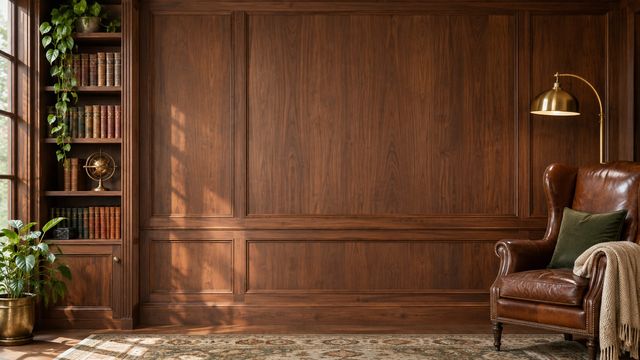
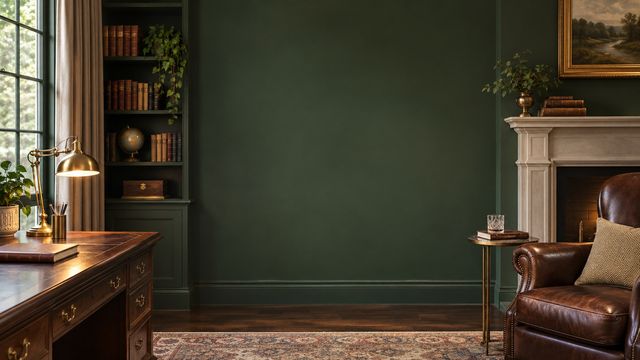
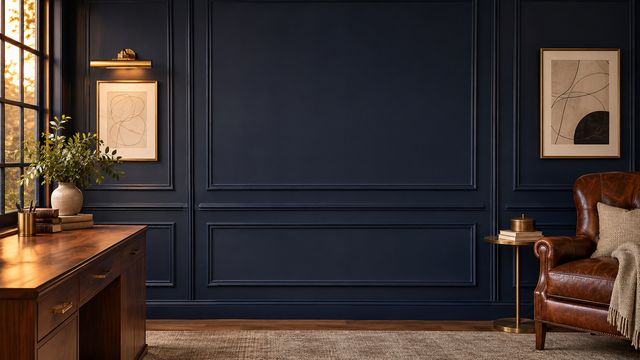
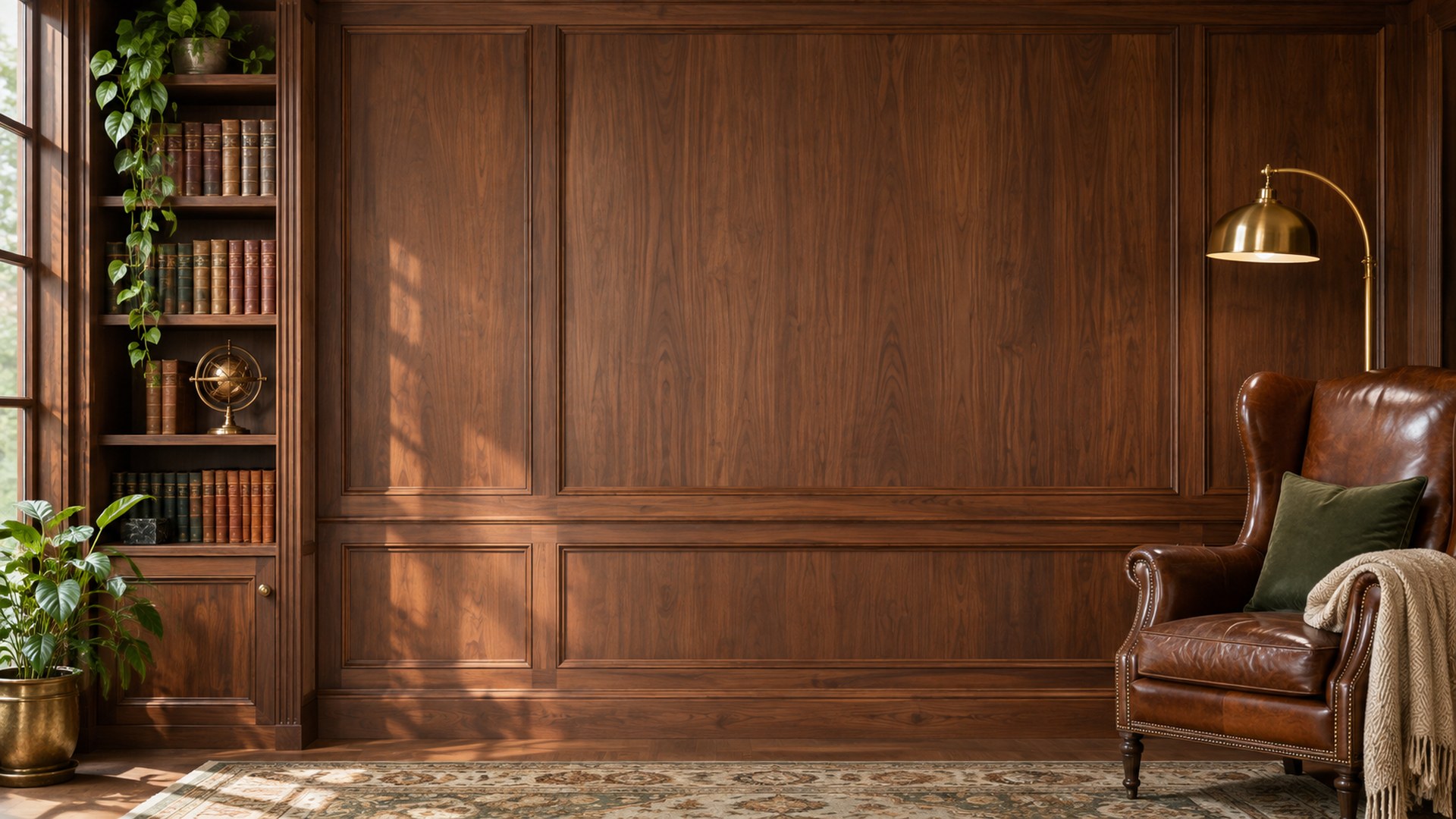
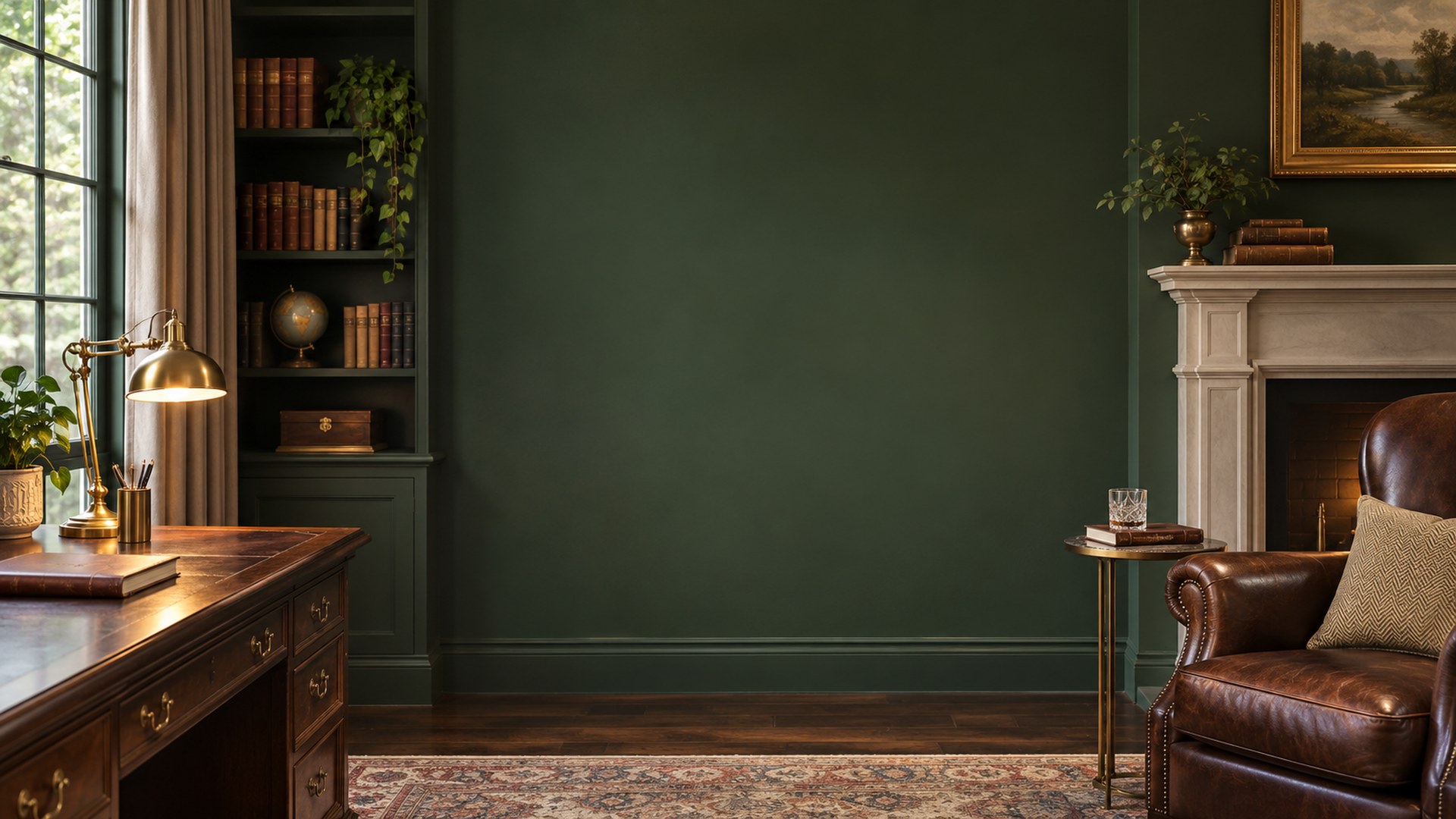
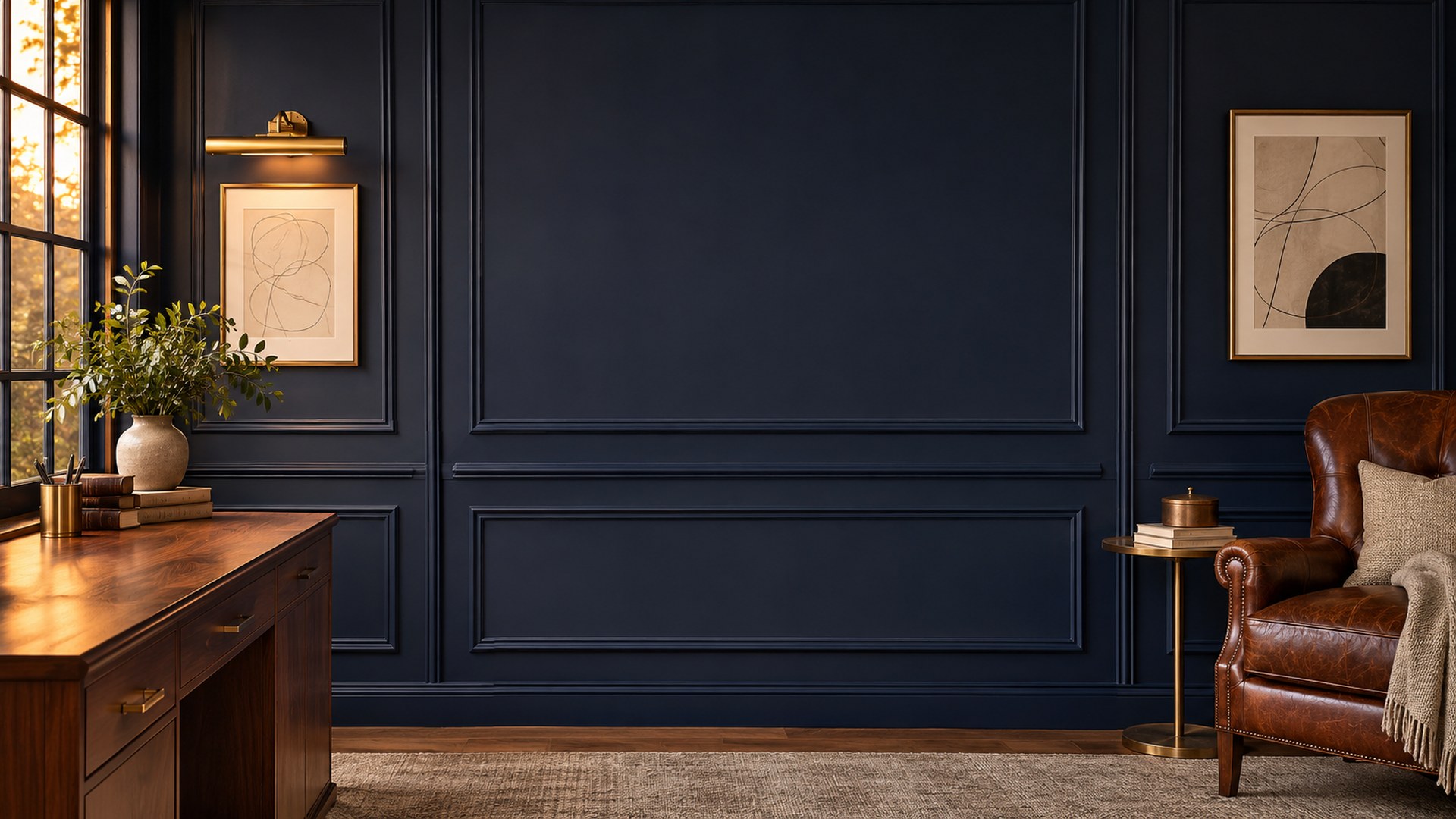
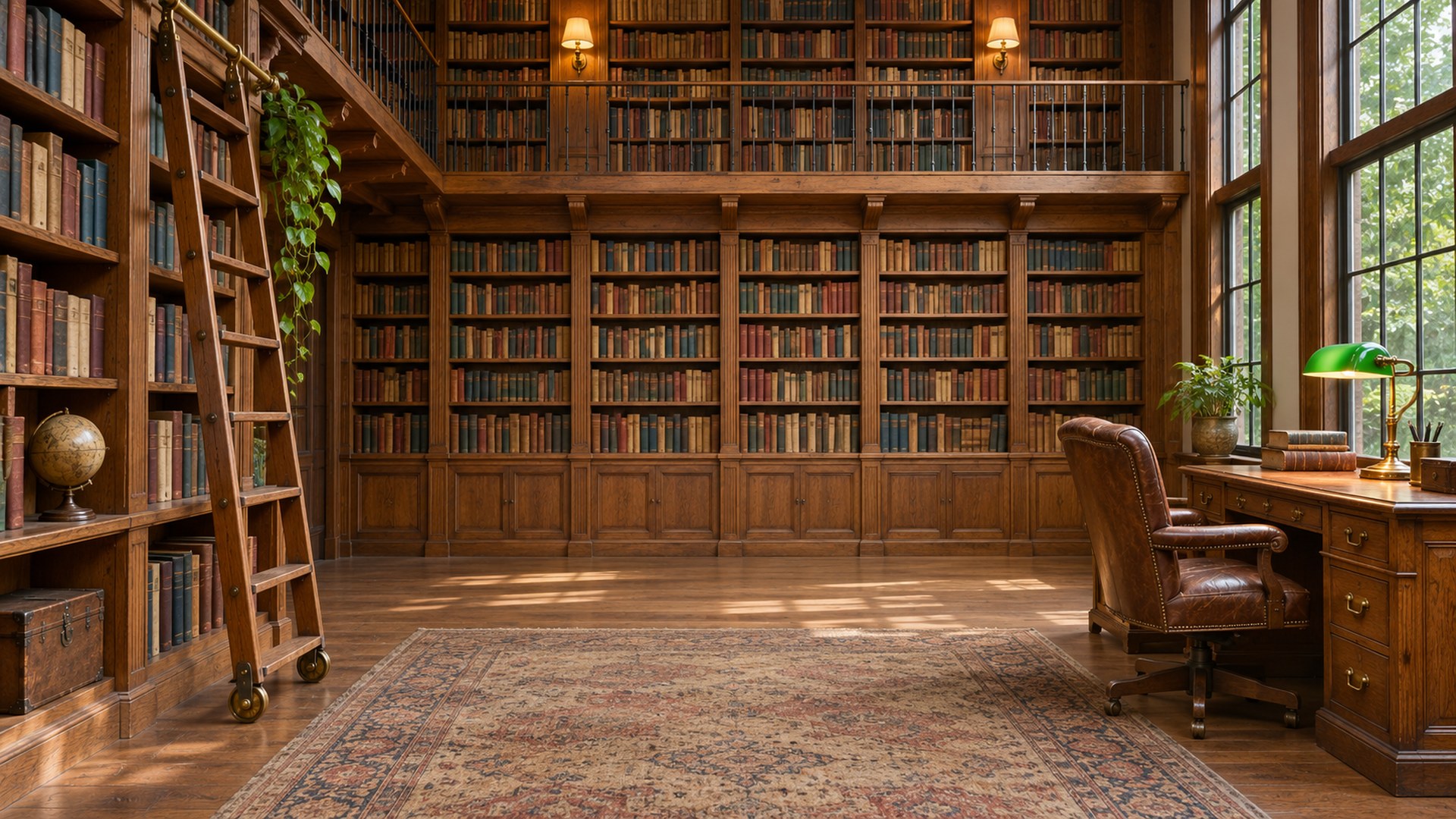
Executive and classic offices
Panelling, books and leather. Formal rooms that still leave the centre calm for your face.
Bright and modern offices
Clean architecture, pale walls and daylight. The safest set for client-facing Teams calls.
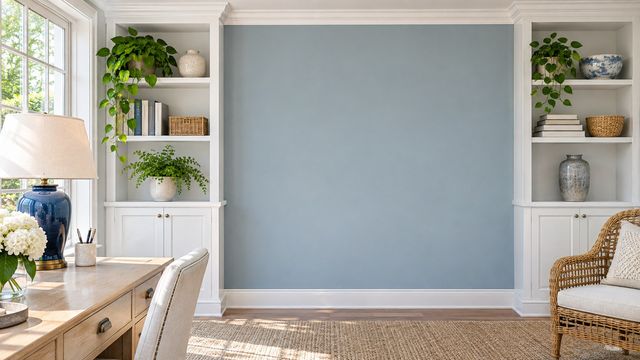
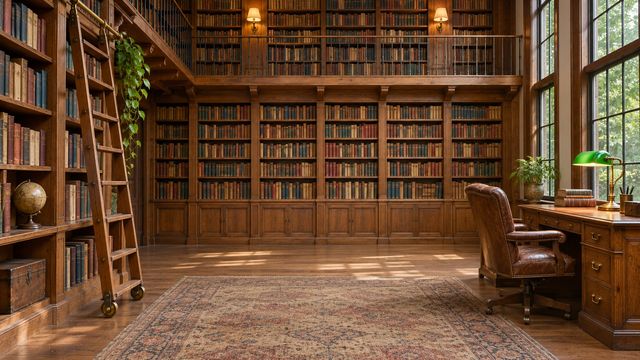
Bright Library Office
Download HD JPG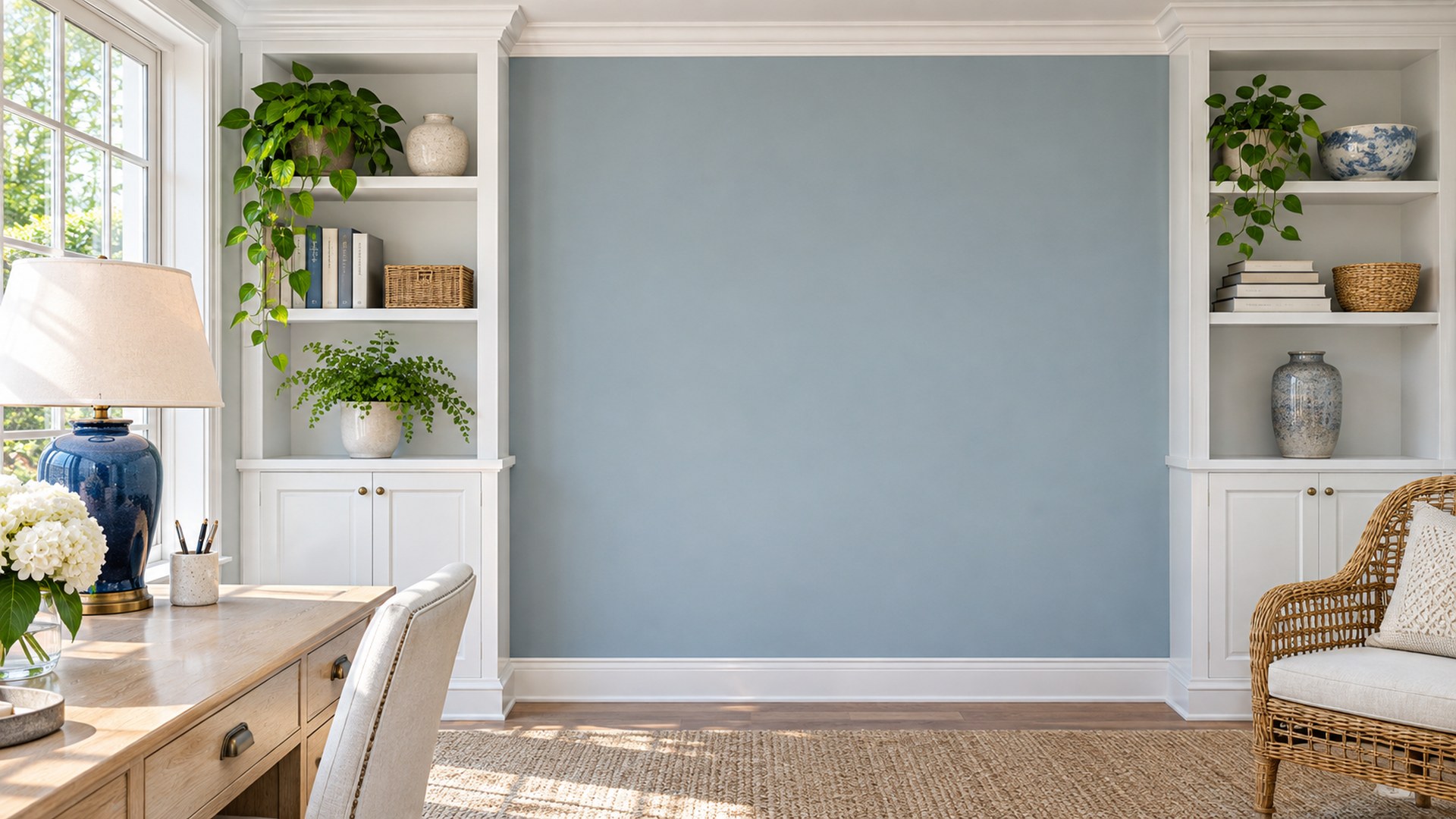
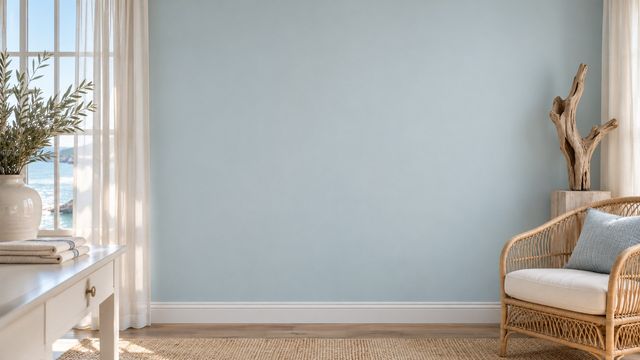
Coastal Light Office
Download HD JPG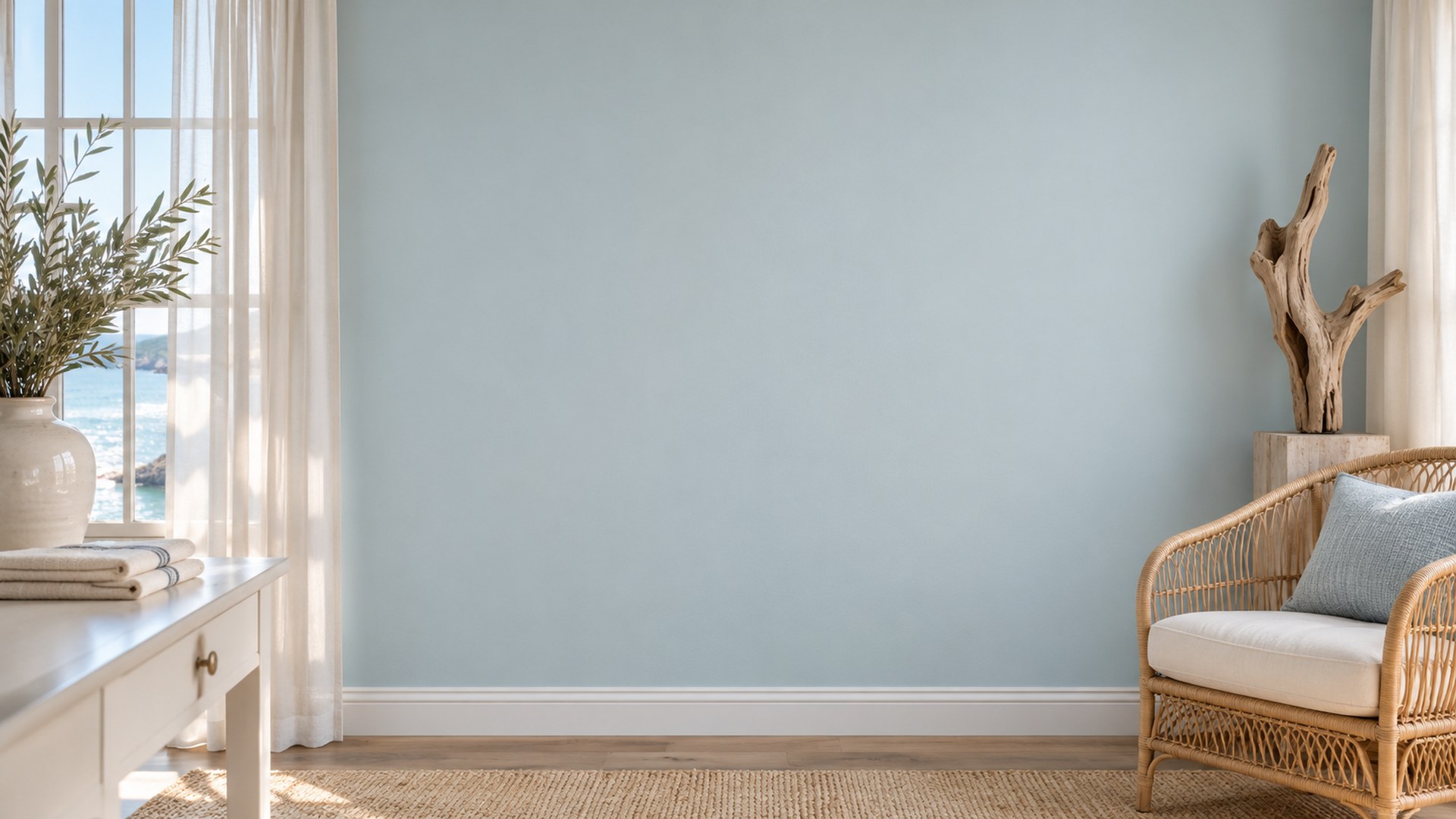
Modern White Office
Download HD JPG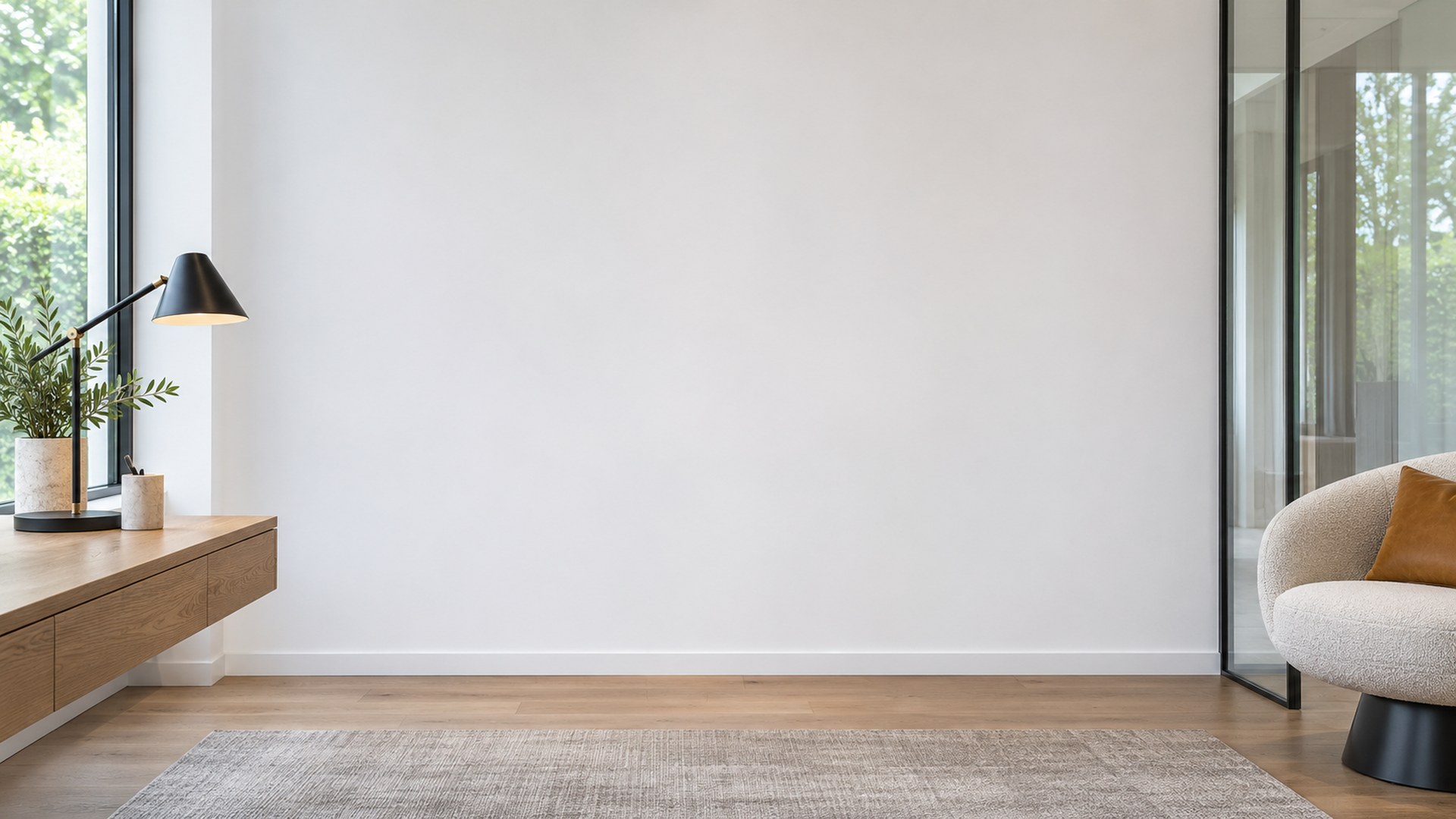
City Skyline Office
Download HD JPG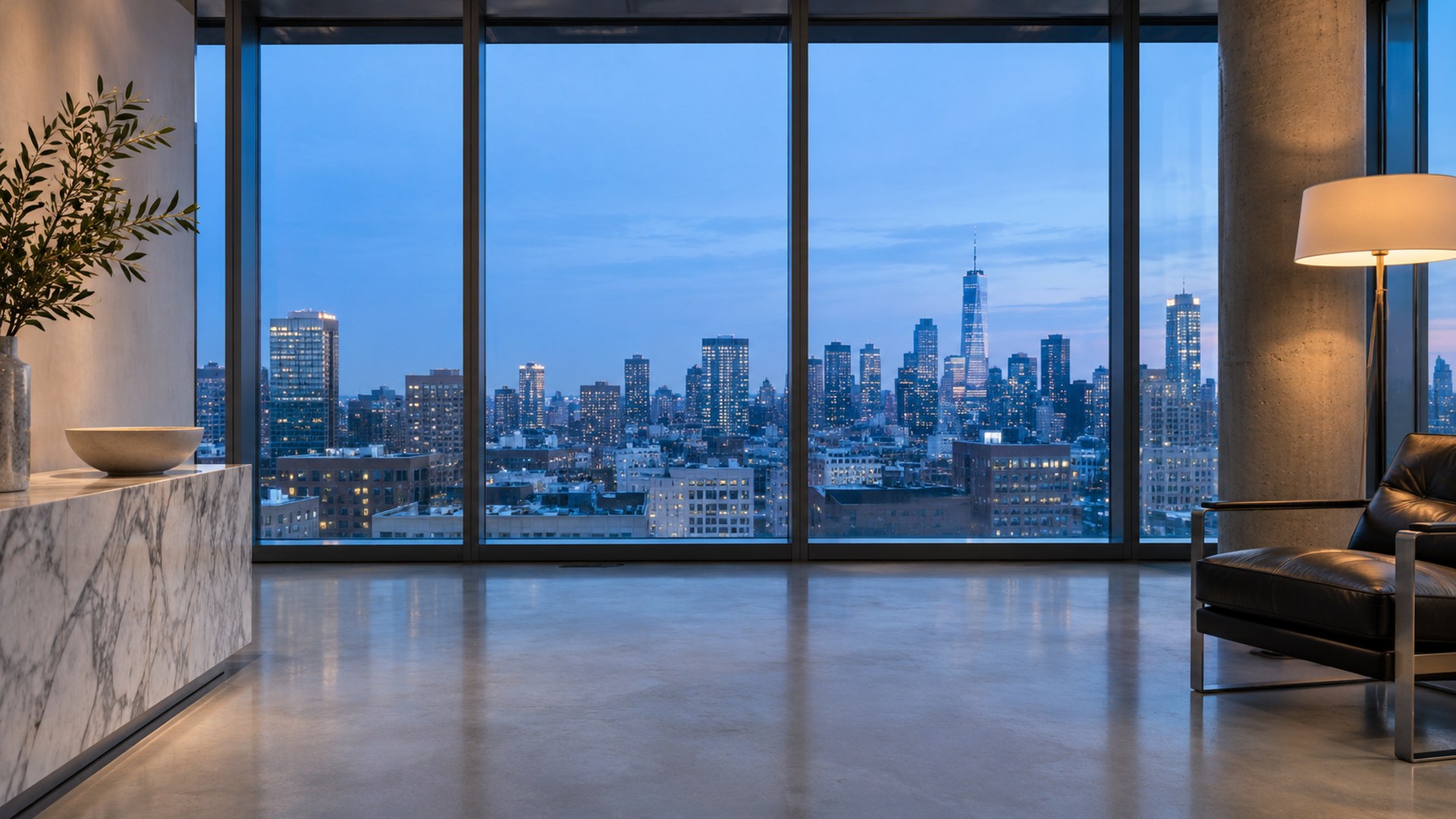
Warm and natural offices
Brick, garden light and timber. For teams that prefer a lived-in room to a corporate set.
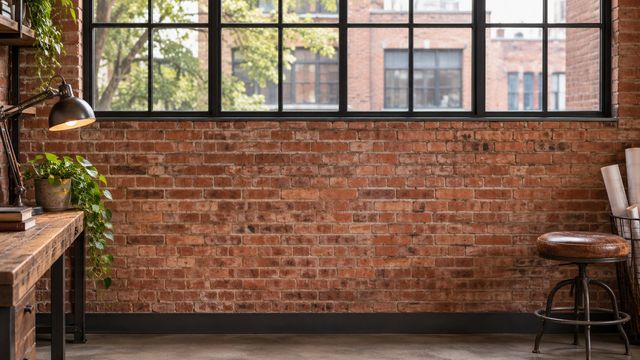
Brick Loft Office
Download HD JPG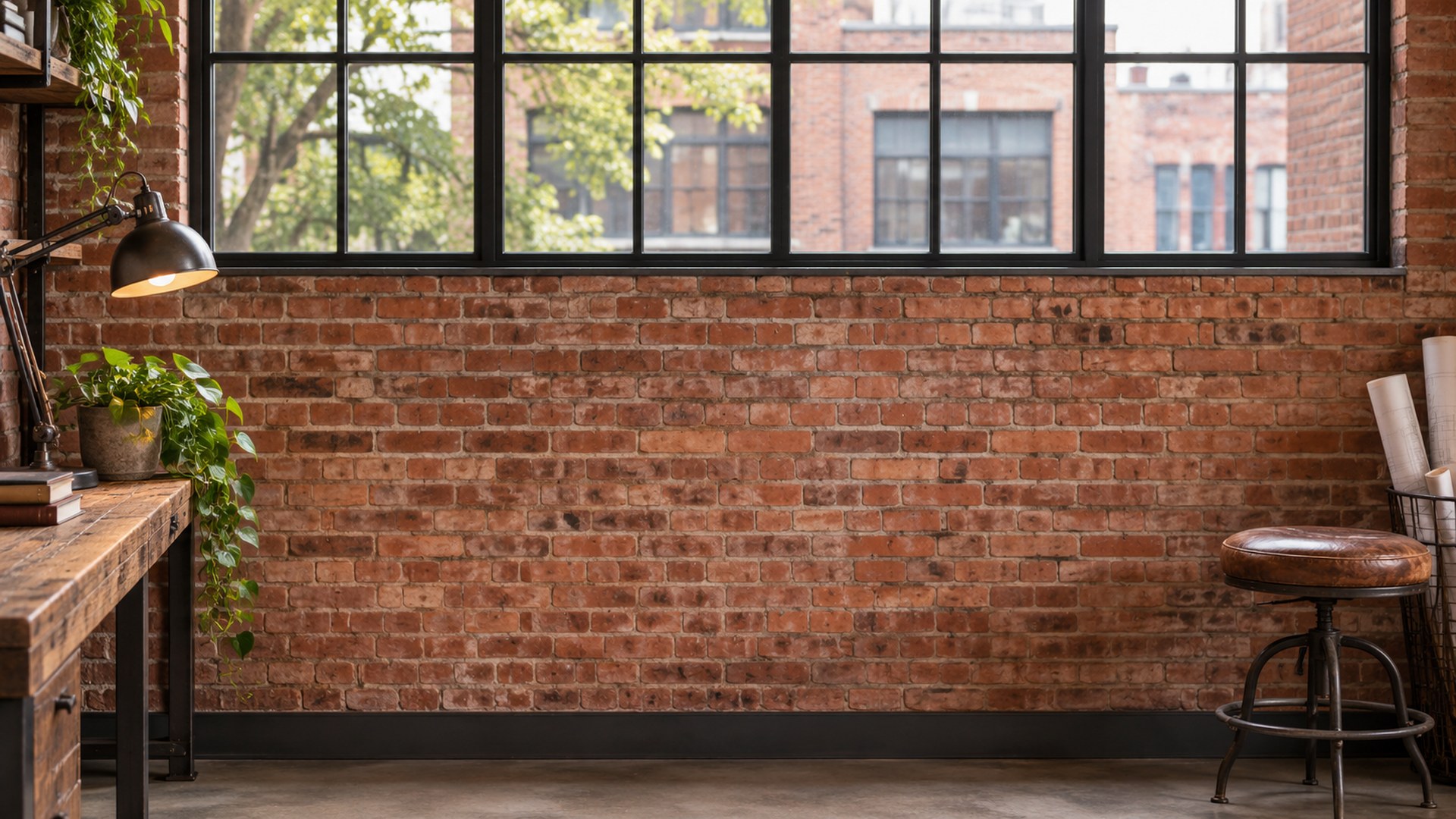
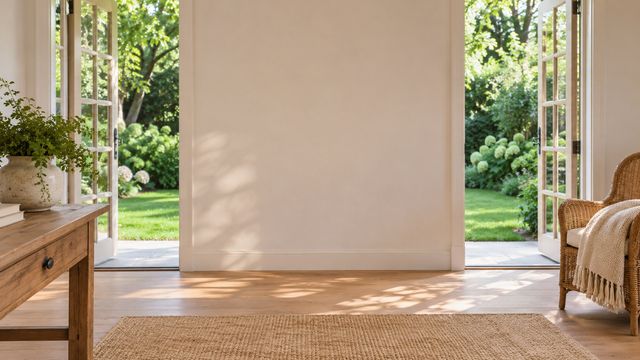
Garden Doors Office
Download HD JPG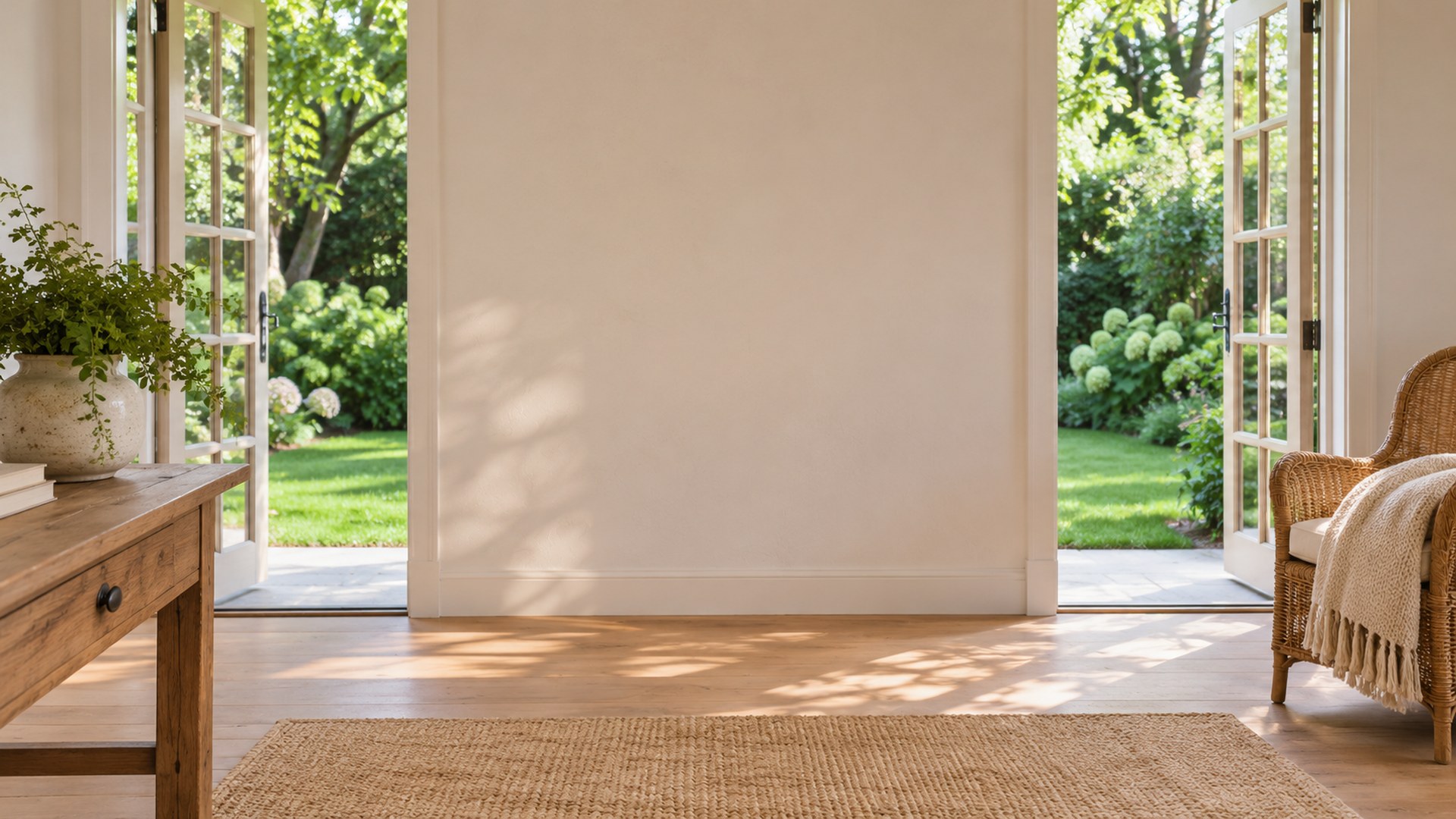
Glass Sunroom Office
Download HD JPG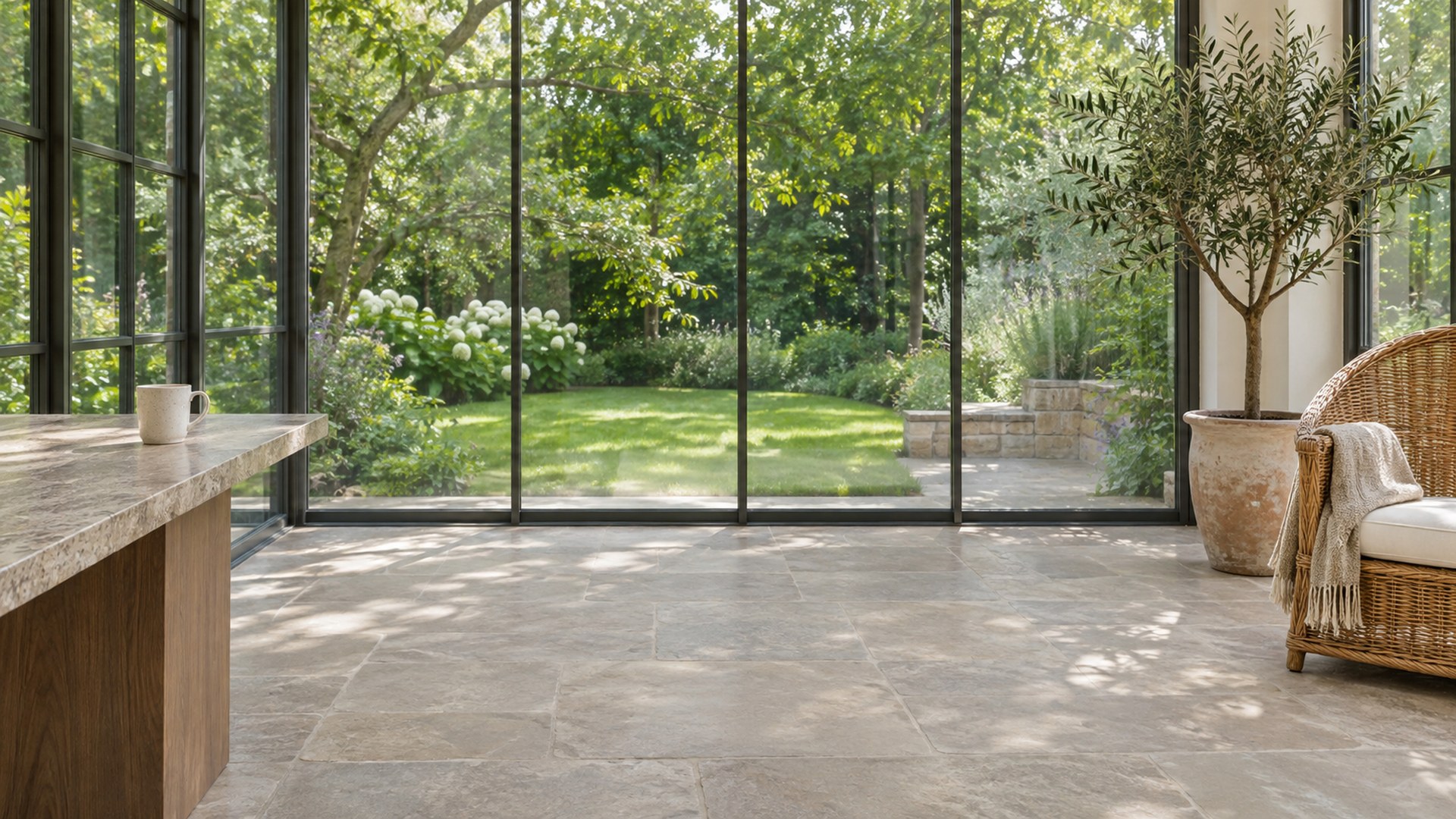
Creative and small-space offices
Gallery walls, warm oak and compact corners. Useful when you want personality without clutter.
Gallery Wall Office
Download HD JPG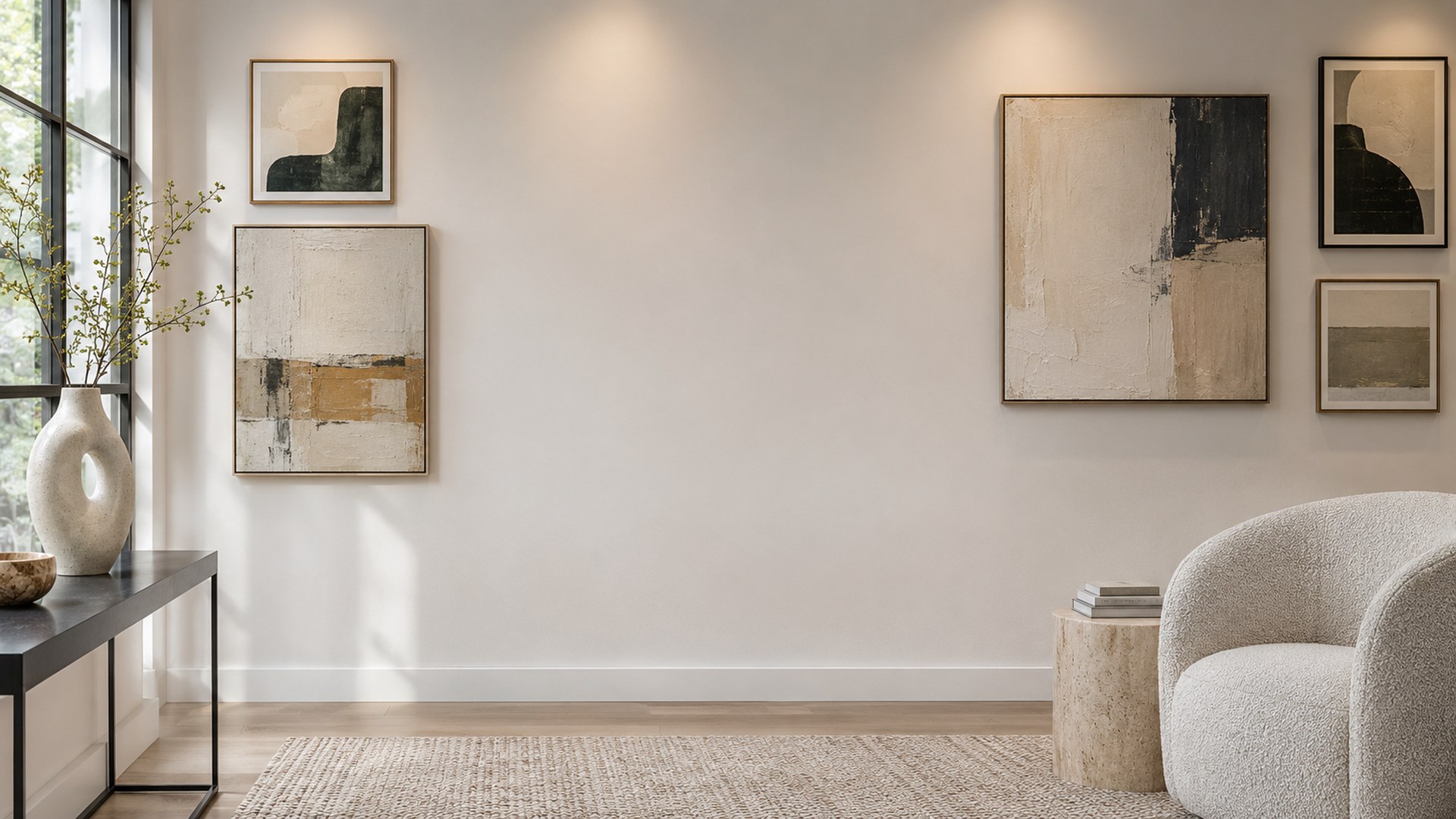
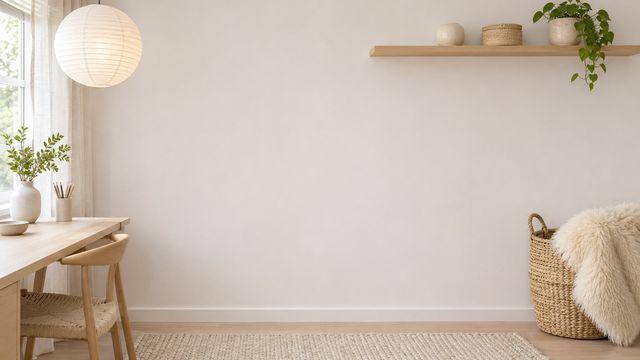
Scandi Nook Office
Download HD JPG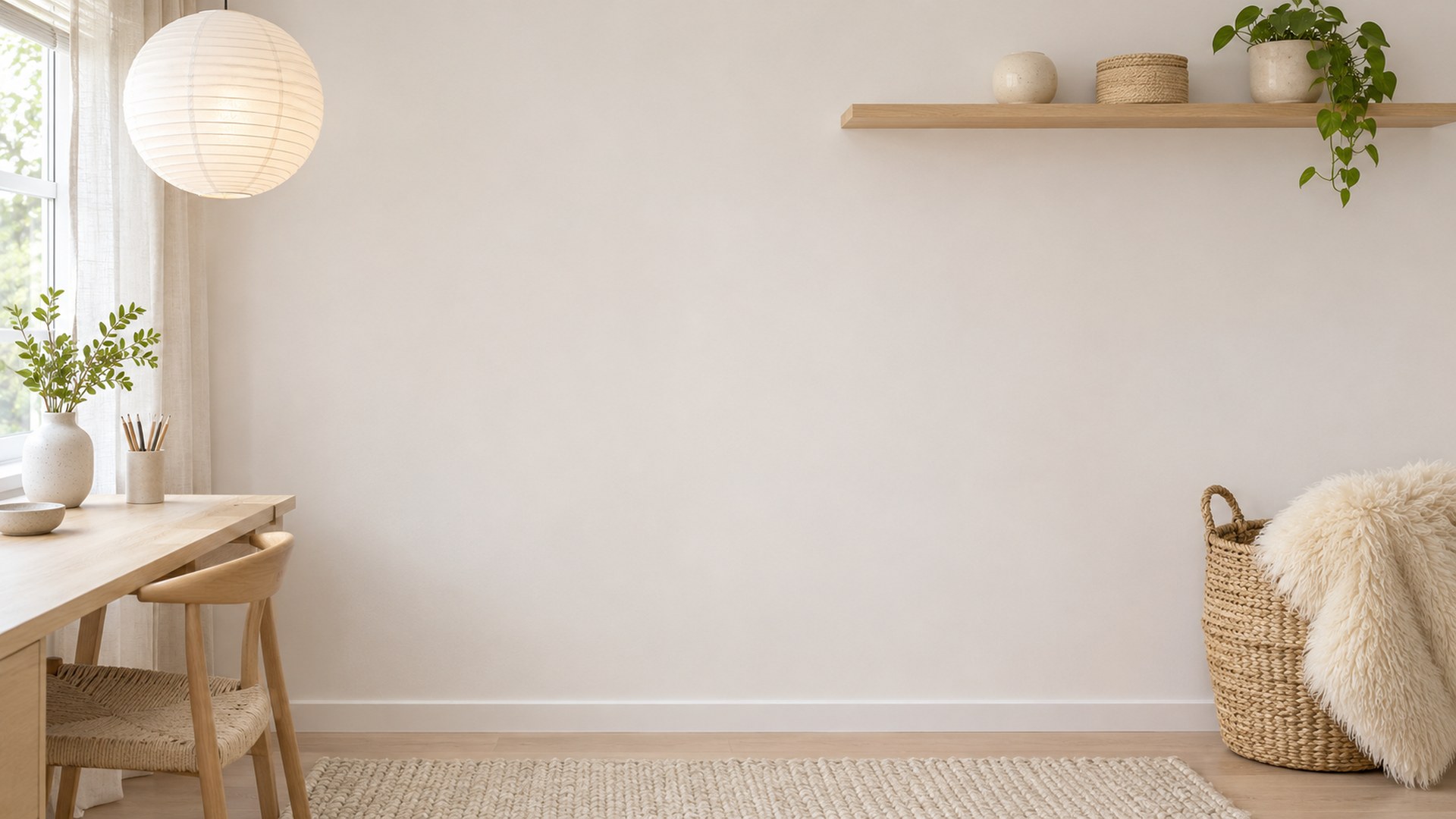
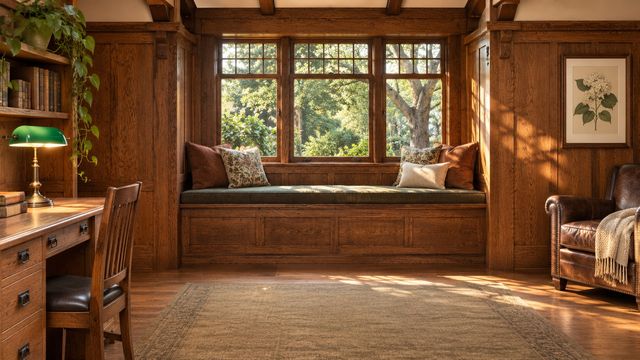
Warm Craftsman Office
Download HD JPG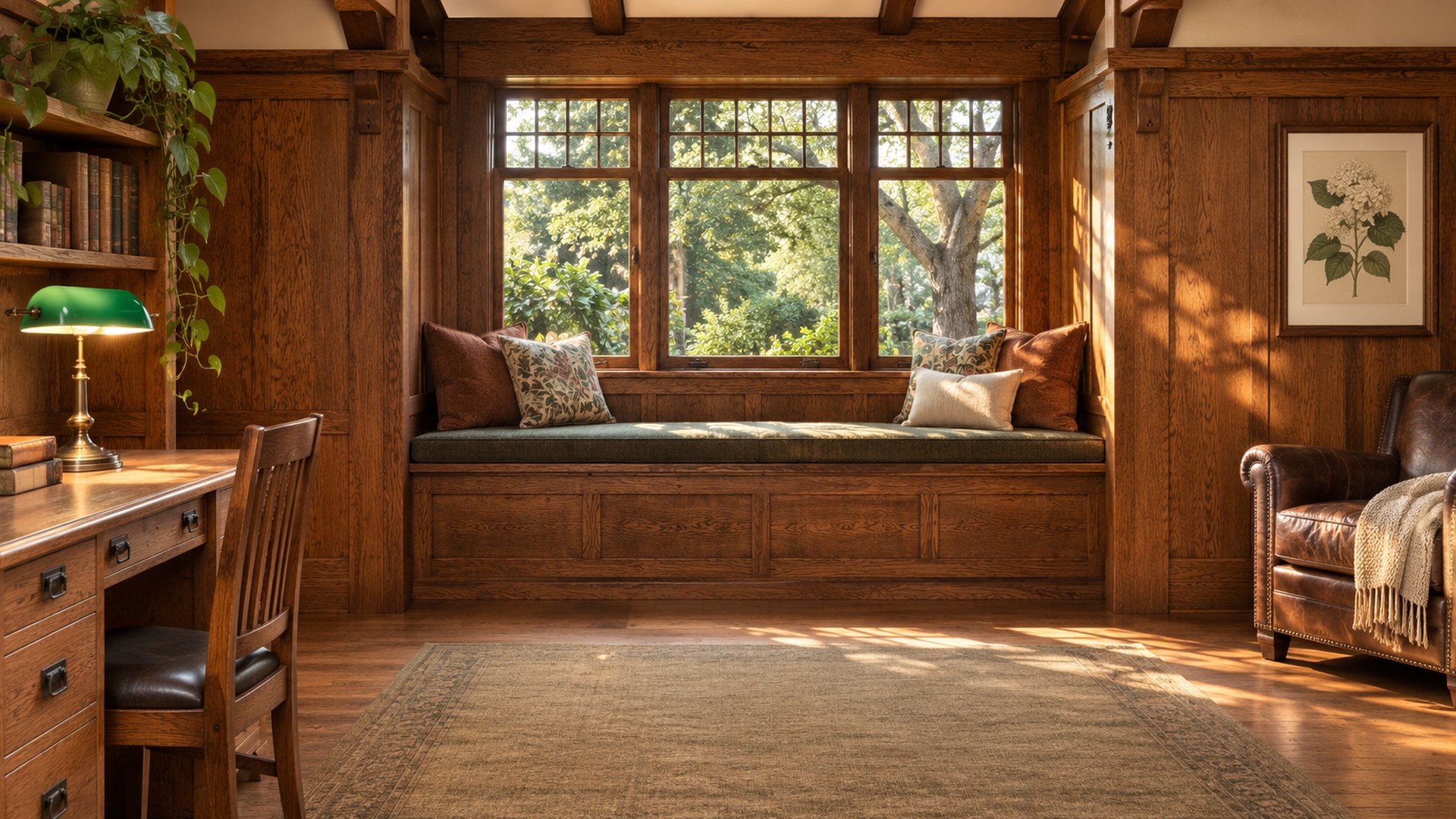
Which home office fits your Teams call?
Match the room to the meeting, then check the crop.
| Call type | Best backgrounds | Why it works |
|---|---|---|
| Weekly team meeting | Bright Library Office, Coastal Light Office, Scandi Nook Office | Bright, friendly rooms that stay legible when Teams shrinks your tile. |
| Client presentation | Executive Home Den, Navy Panelled Office, Modern White Office | Panelling or a clean white wall signals preparation without distracting from your face. |
| Leadership or formal call | Green Study, Library Ladder Office, City Skyline Office | Books, architecture and deeper colour read as experience and composure. |
| Creative or informal call | Gallery Wall Office, Brick Loft Office, Garden Doors Office | A little personality at the edges keeps the call warm without looking careless. |
How to look right on a Teams call
Three checks before you hit Join.
1 · KEEP THE CENTRE QUIET
Detail belongs at the edges
Books, lamps and chairs make the room feel real. Sit so they frame your shoulders rather than sitting directly behind your head.
2 · MATCH THE LIGHT
Warm room, warm face
Warm panelling and lamplight pair with a warm desk lamp. Cool white offices pair with daylight or a neutral monitor light.
3 · CHECK THE TEAMS TILE
Test at meeting size
Join a test call and look at your tile, not the full-screen preview. If the bookshelf turns into noise, choose a plainer wall.
File specs before you upload
Every download is ready for Microsoft Teams.
Resolution
1920×1080, a 16:9 frame. Teams accepts the file directly and keeps it sharp on a full-screen call.
Format and weight
Plain JPG, typically a few hundred kilobytes each. Uploads finish quickly and nothing is re-compressed before the call.
Desktop and mobile
The same JPG works in the Teams desktop app and mobile app. On mobile, save it to Photos or Files before choosing Add new.
No green screen required
Teams can apply a virtual background without a green screen on most modern computers. Even front lighting improves the edge.
How to add a home office background in Teams
Desktop first; mobile uses the same file.
STEP 1
Download the JPG
Use the download button under any room and save the original file, not the thumbnail.
STEP 2
Open Background effects
In Teams, open Settings → Appearance and accessibility → Background effects. Before joining, the same option appears in the pre-join screen.
STEP 3
Add the image
Choose Add new, select the saved JPG and preview it with your camera on. Leave green-screen mode off unless you actually use one.
Need a different crop? Use the background size fixer, the background maker or the compressor if Teams rejects a file for size.
More background collections
Questions
Are these home office Teams backgrounds free?
Yes. All 14 JPGs are free to download at 1920×1080, with no signup, trial or watermark. Use them in Microsoft Teams, Zoom and Google Meet.
What size are the files?
Every download is a 1920×1080 JPG in a 16:9 frame. Teams accepts the file directly, and the resolution stays sharp on a full-screen call.
How do I add one in Microsoft Teams?
Download the JPG, open Teams settings, choose Appearance and accessibility → Background effects, then Add new and select the file. On mobile, use Backgrounds → Add new.
Can I use the same file in Zoom?
Yes. The file is not Teams-specific. In Zoom, open Settings → Background & effects → Add image and select the same JPG.
Do I need a green screen?
No. Teams can apply a virtual background without a green screen on most modern computers. Even front lighting improves the edge around your hair and shoulders.
Which home office looks most professional?
Start with Executive Home Den, Navy Panelled Office, Modern White Office. The centre stays plain and the detail sits near the edges of the frame.
Is a bright or dark office better for Teams?
Bright rooms hide compression noise better; darker rooms look more formal but need decent front lighting. If your camera is noisy, choose Bright Library Office or Coastal Light Office.
Can I use these in commercial calls?
Yes. They are free for personal and commercial meetings, interviews, classes and webinars. You cannot resell or redistribute the files as your own collection.