
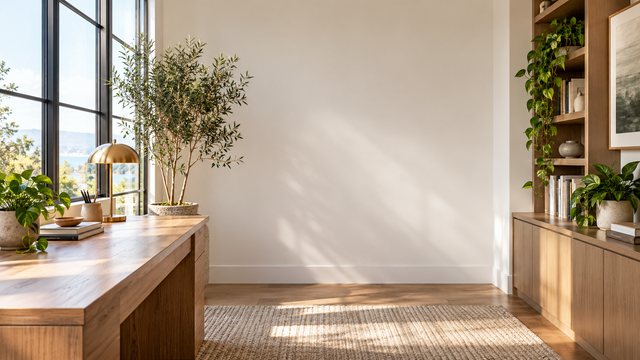
Home Office Zoom Backgrounds
Fifteen free 1920×1080 home office backgrounds for Zoom, Teams and Google Meet. Bright window desks, warm bookshelves, plants and compact apartment setups — no signup, no watermark, no editor.
15 rooms1920×1080 JPGNo signupWorks in Teams
Bright and airy home offices
Window desks, pale wood and soft daylight for client calls and morning standups.
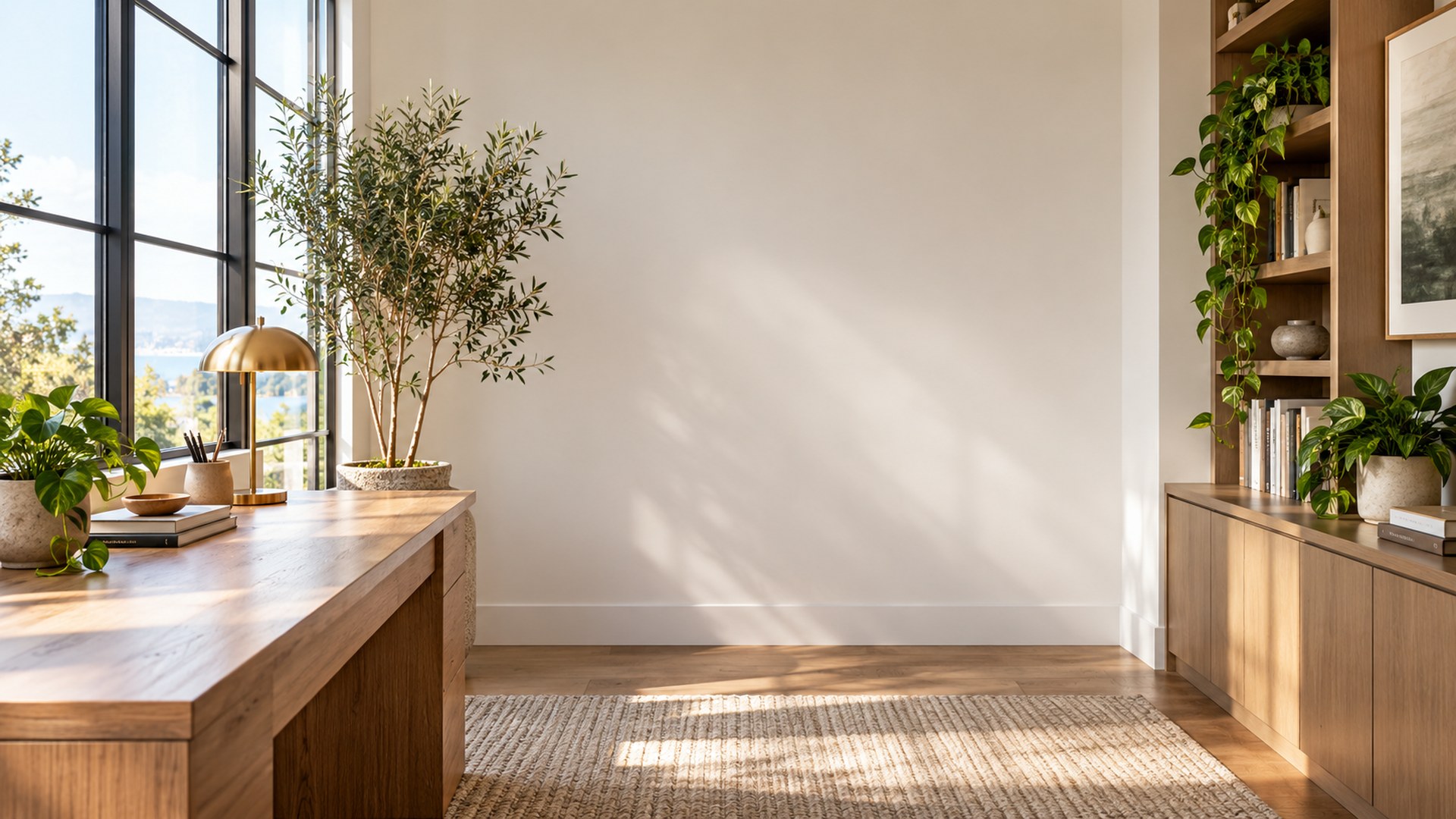
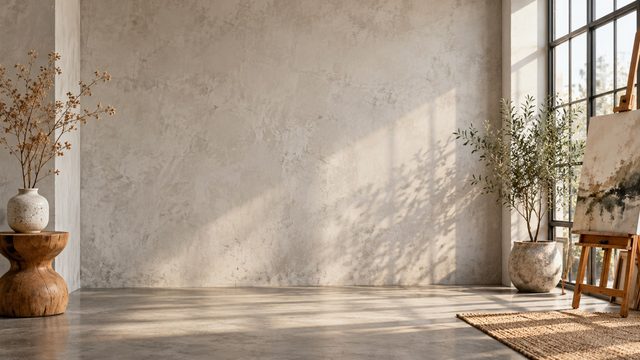
Minimal Studio Morning
Download HD JPG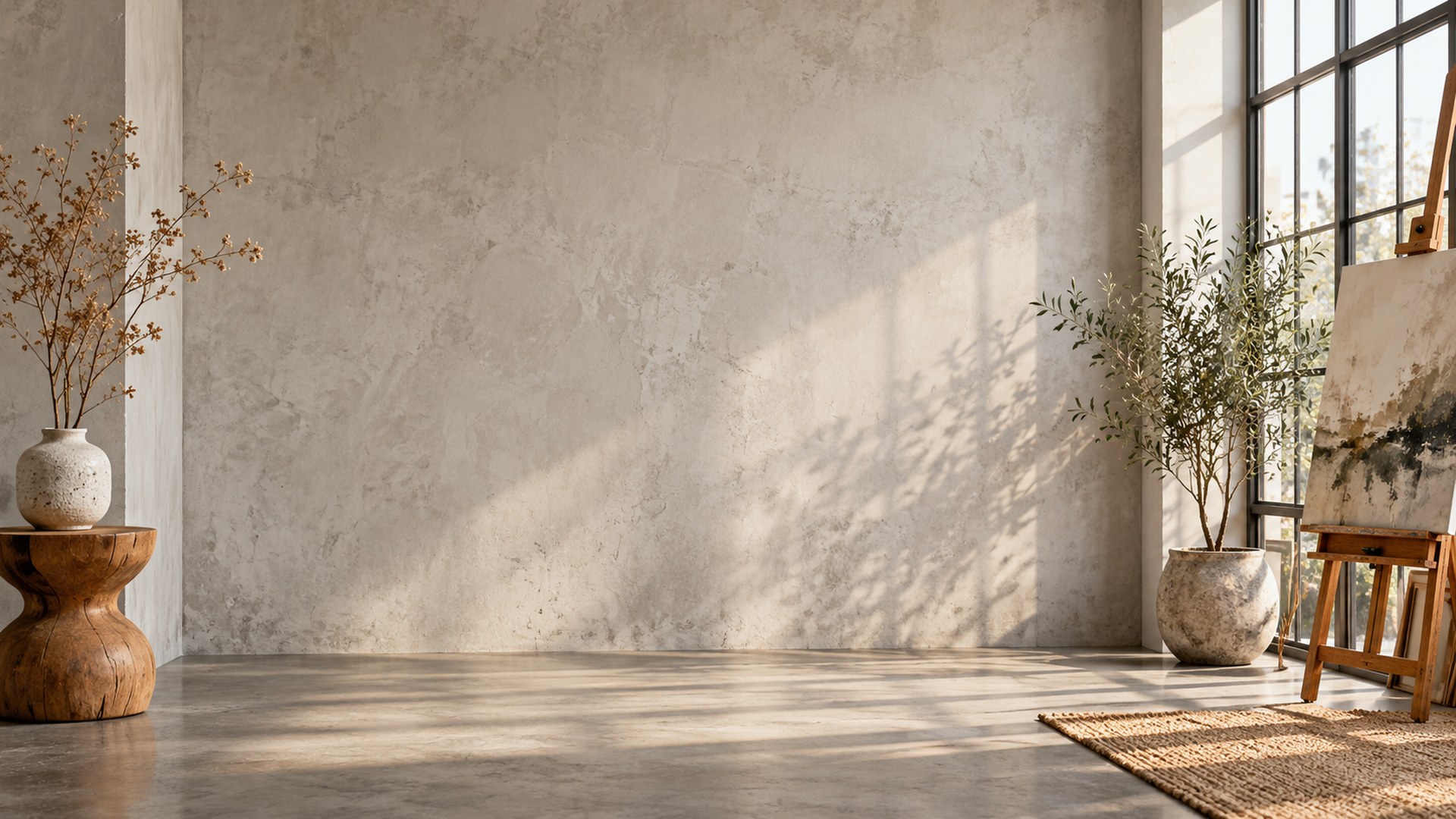
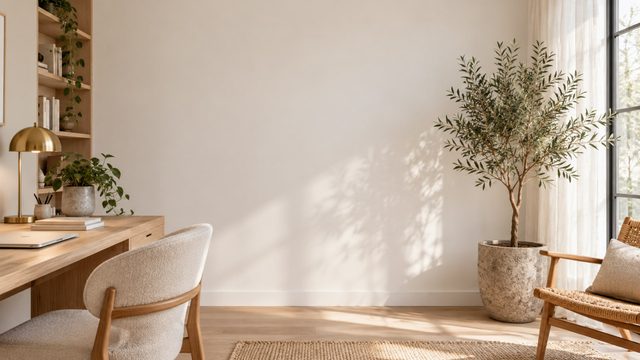
Scandinavian Workspace
Download HD JPG
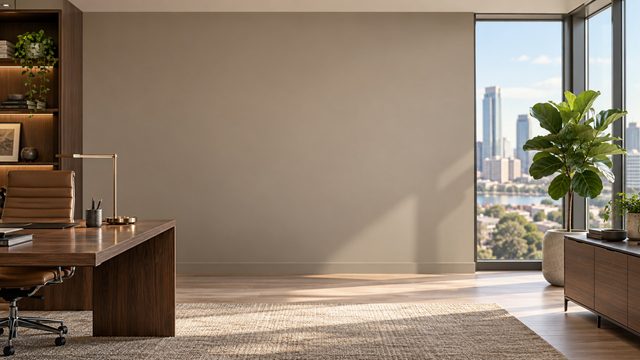
Corner Suite Office
Download HD JPG
Warm bookshelf and reading rooms
Built-in shelves and calm corners for interviews, one-to-ones and calls where you want to look prepared.
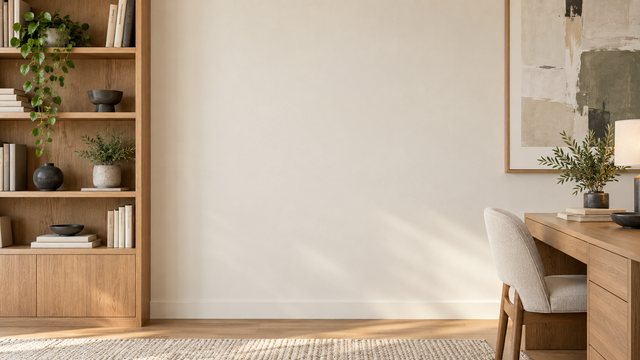
Professional Library Office
Download HD JPG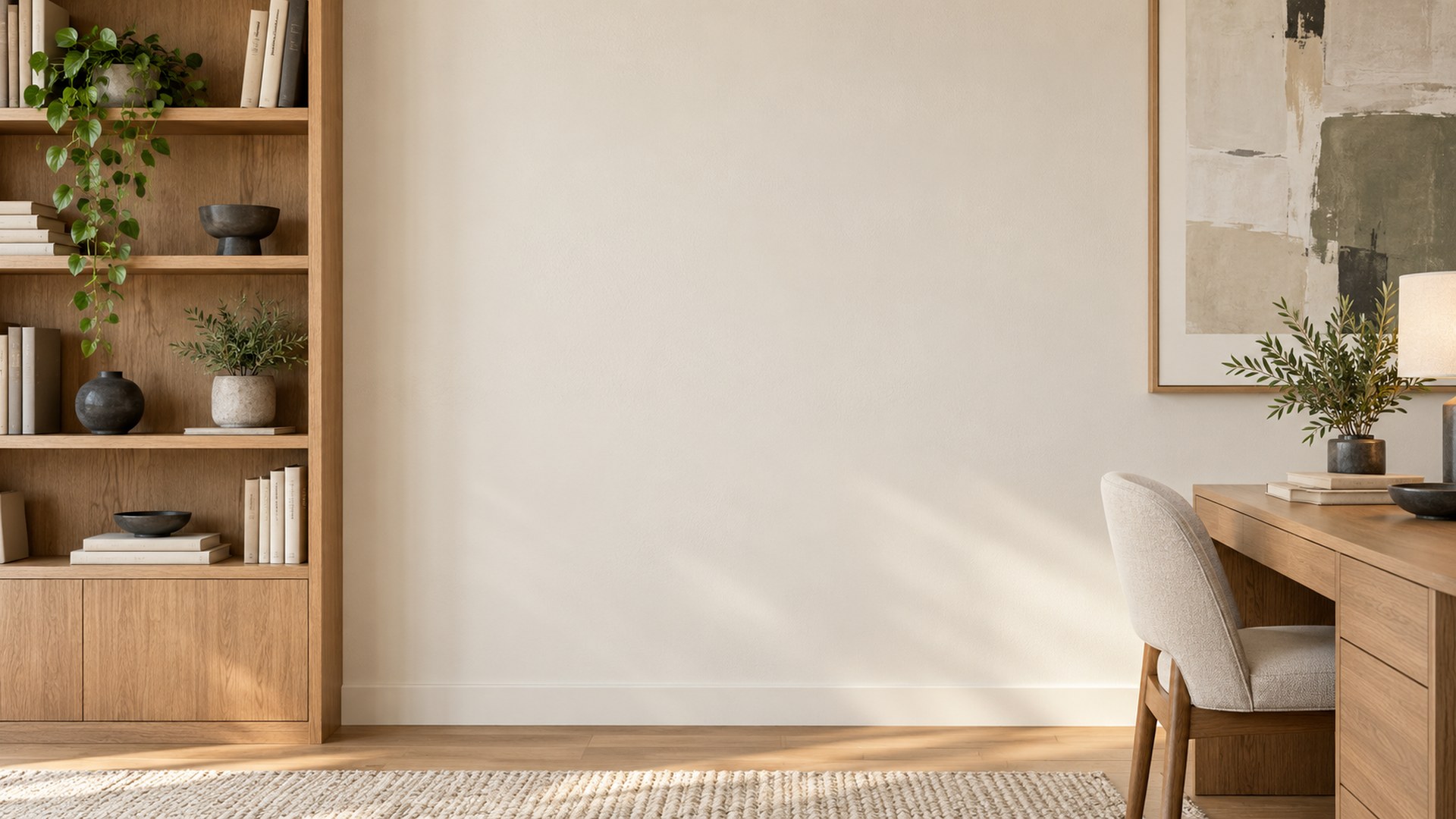
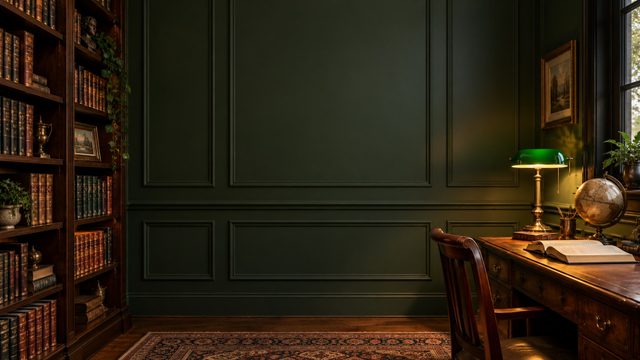
Quiet Library Desk
Download HD JPG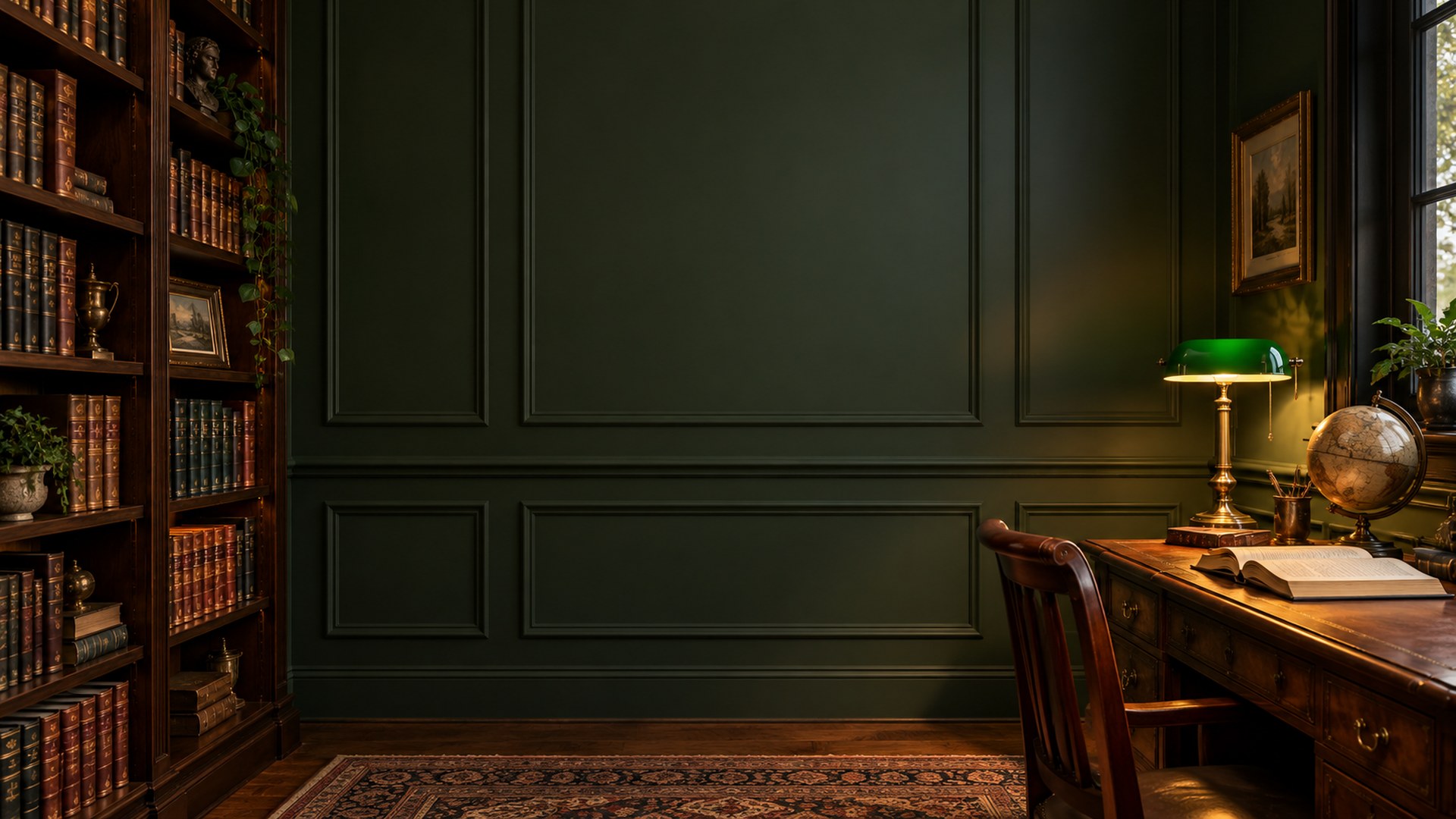
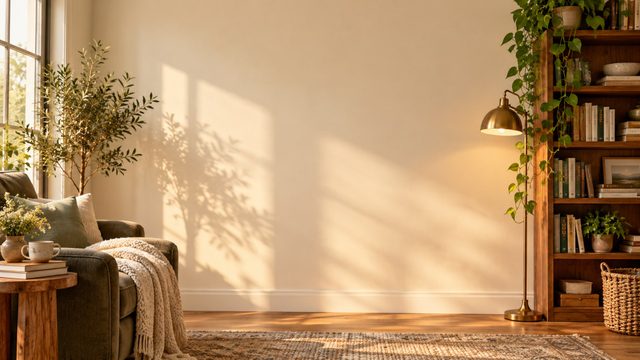
Cozy Reading Corner
Download HD JPG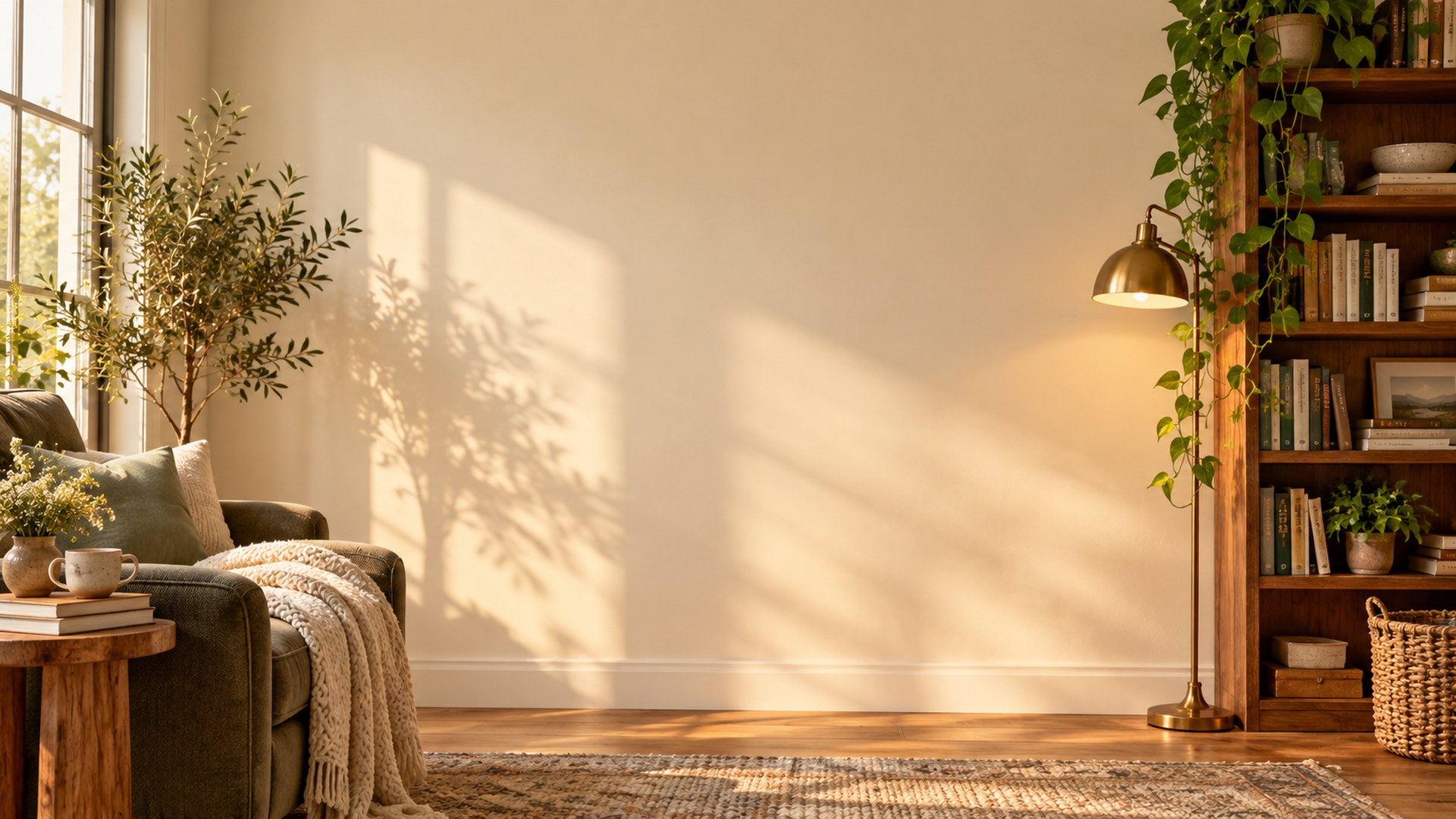
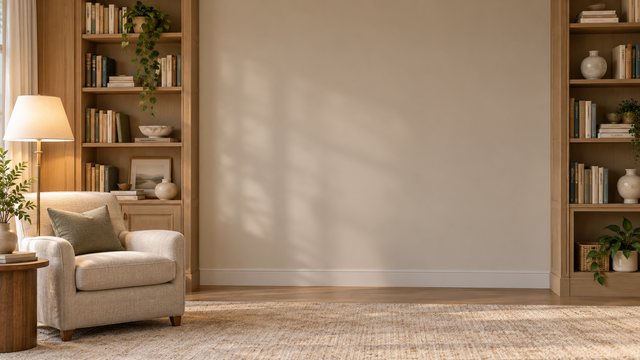
Cozy Reading Nook
Download HD JPG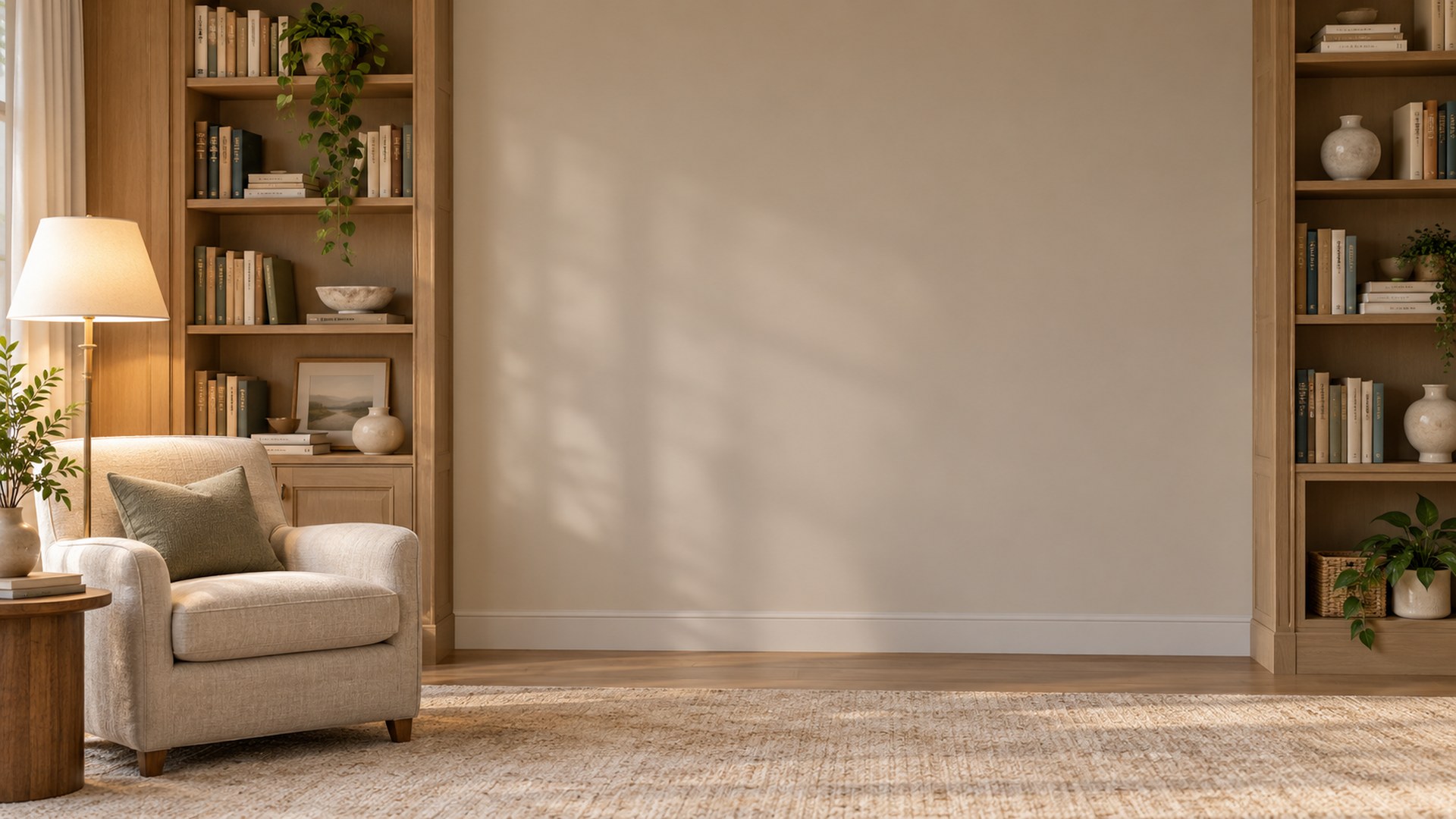
Plants, soft colour and compact desks
Human, approachable rooms for team calls, creative reviews and small-apartment setups.
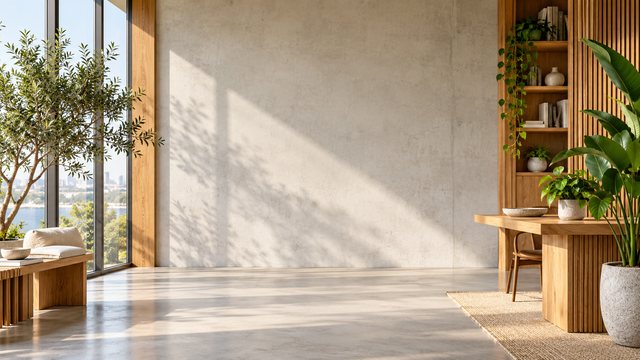
Sunlit Plant Office
Download HD JPG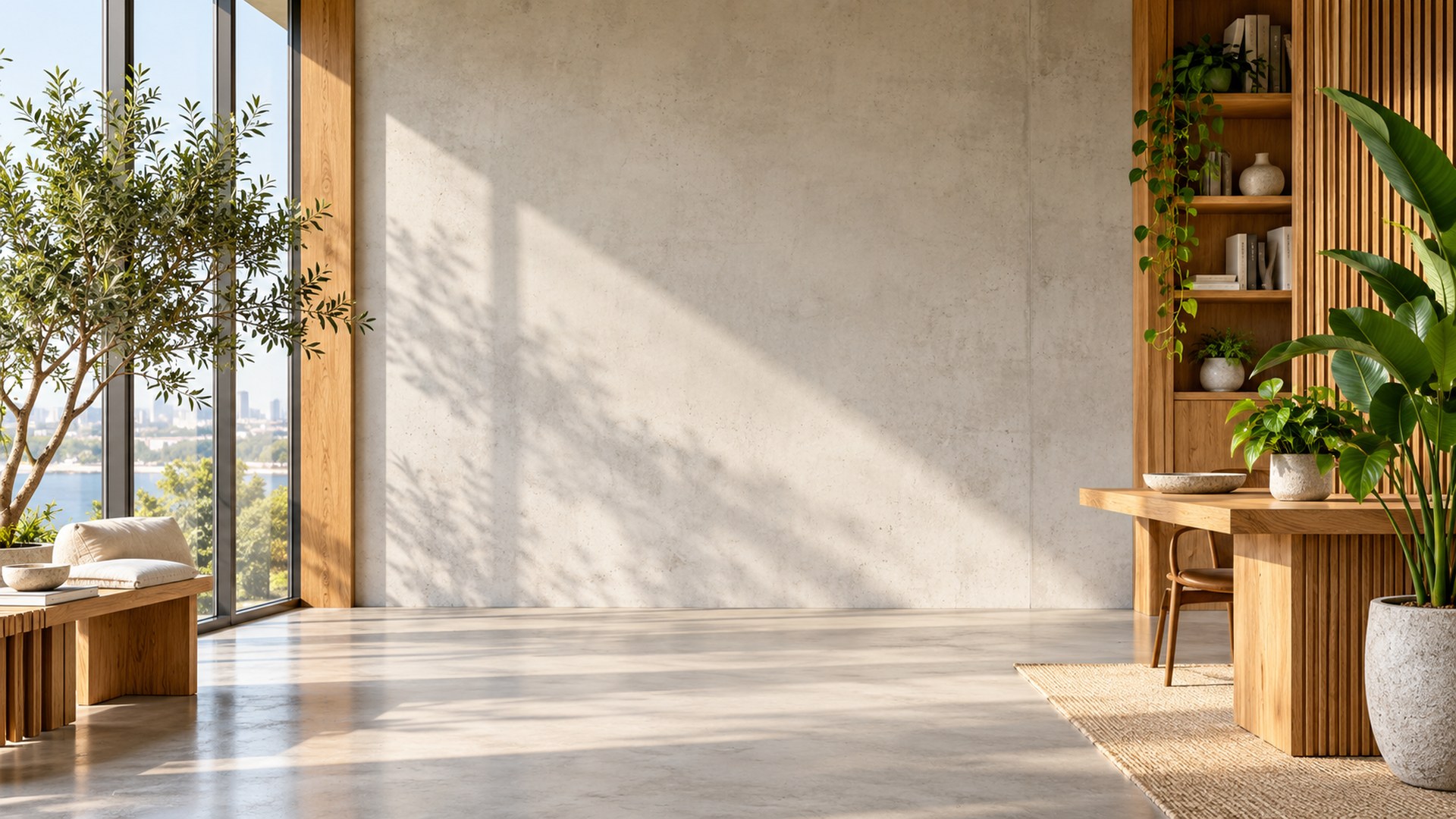
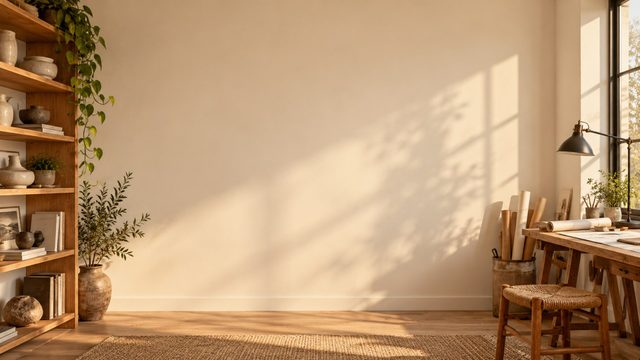
Warm Studio Shelf
Download HD JPG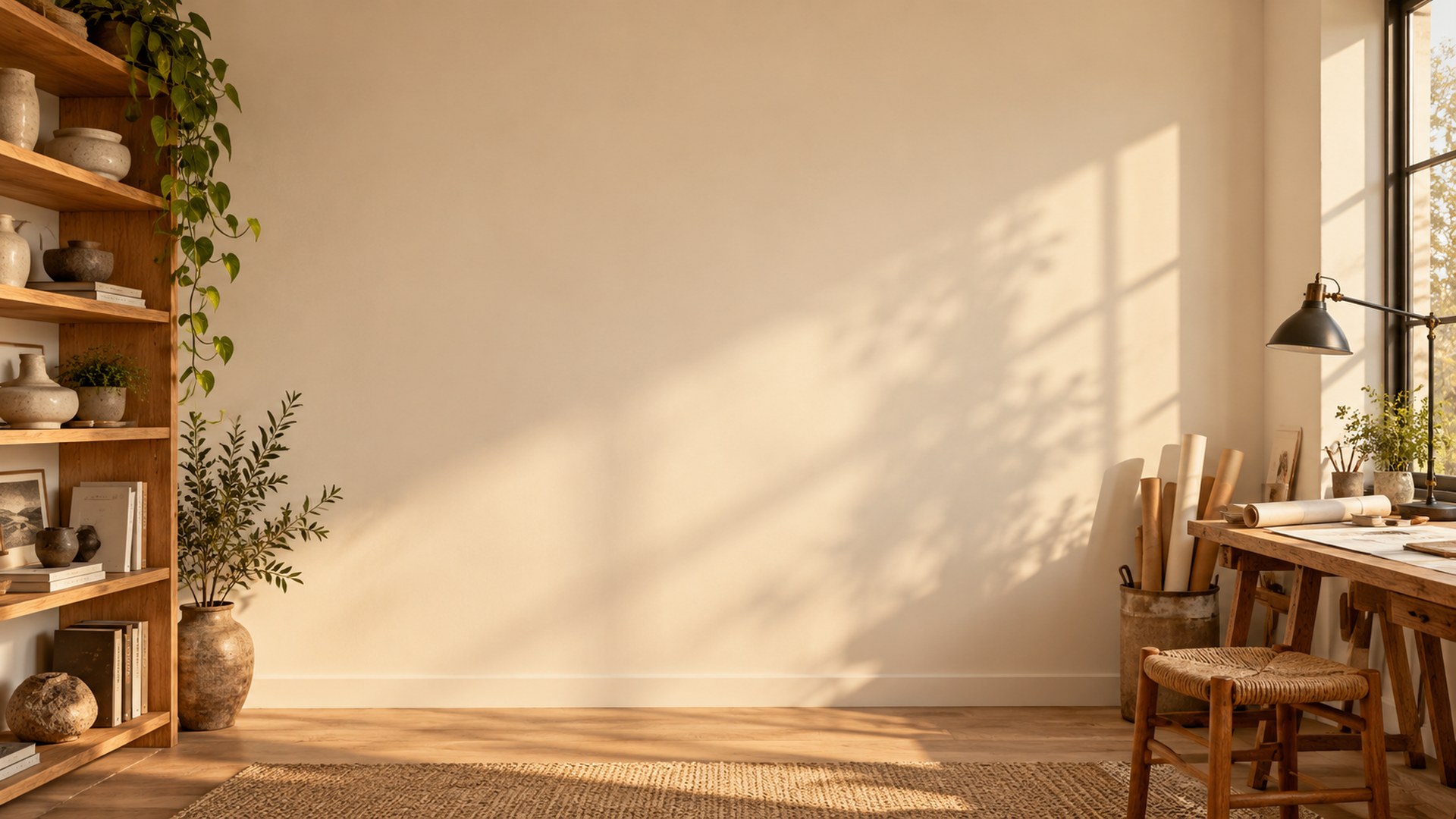
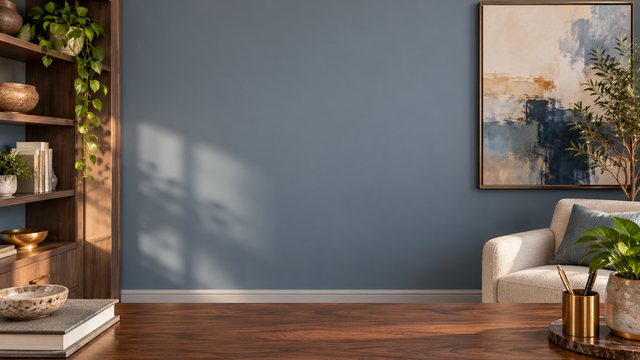
Soft Blue Workspace
Download HD JPG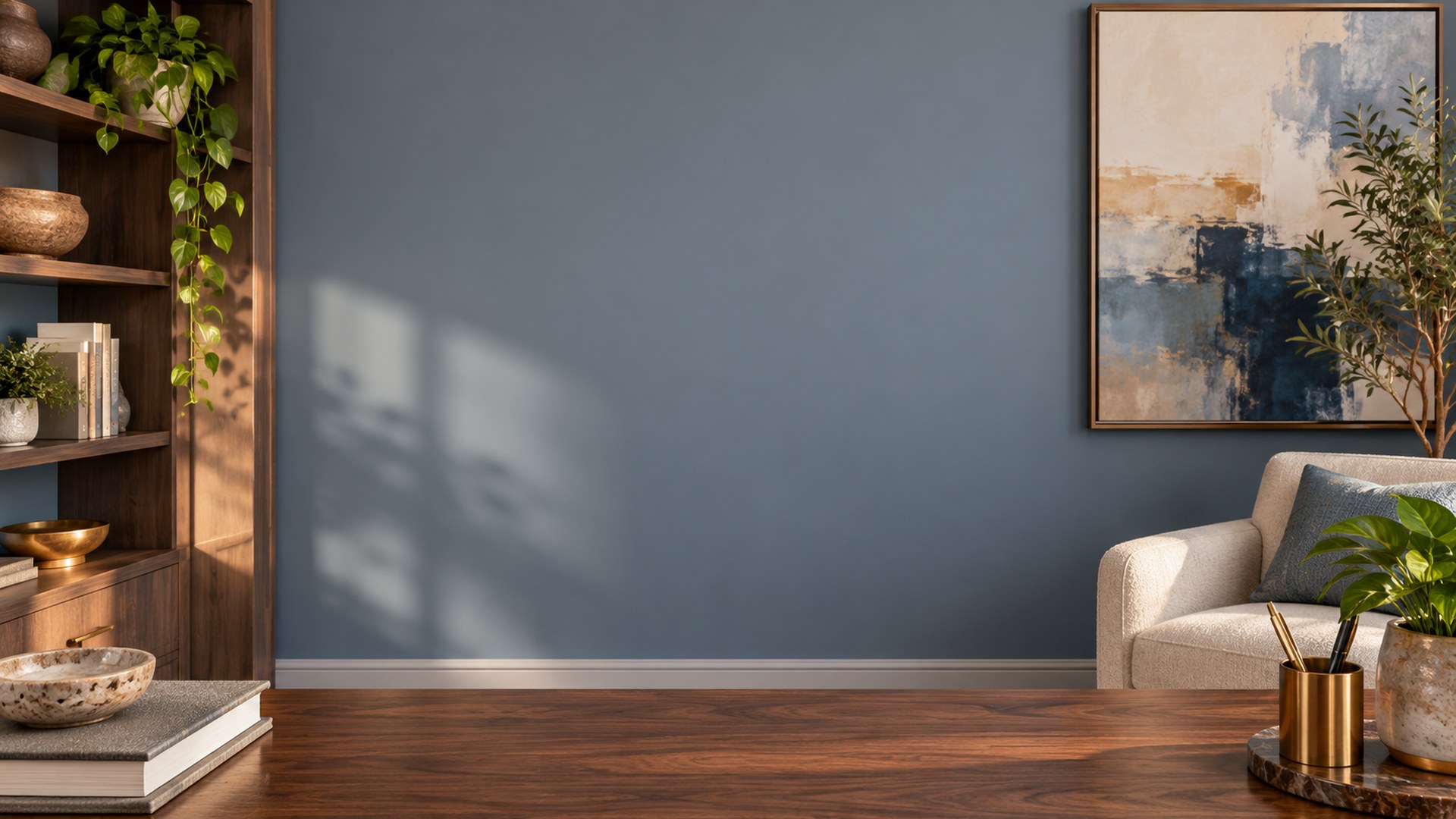
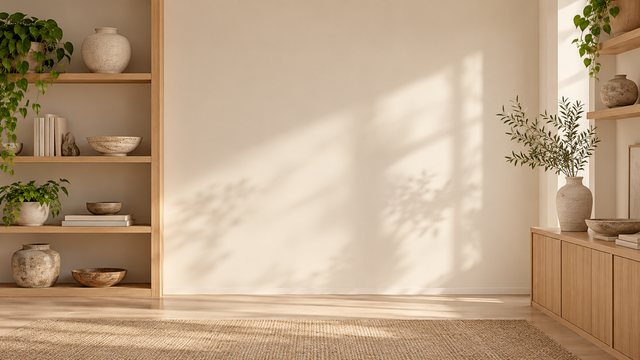
Minimal Creative Studio
Download HD JPG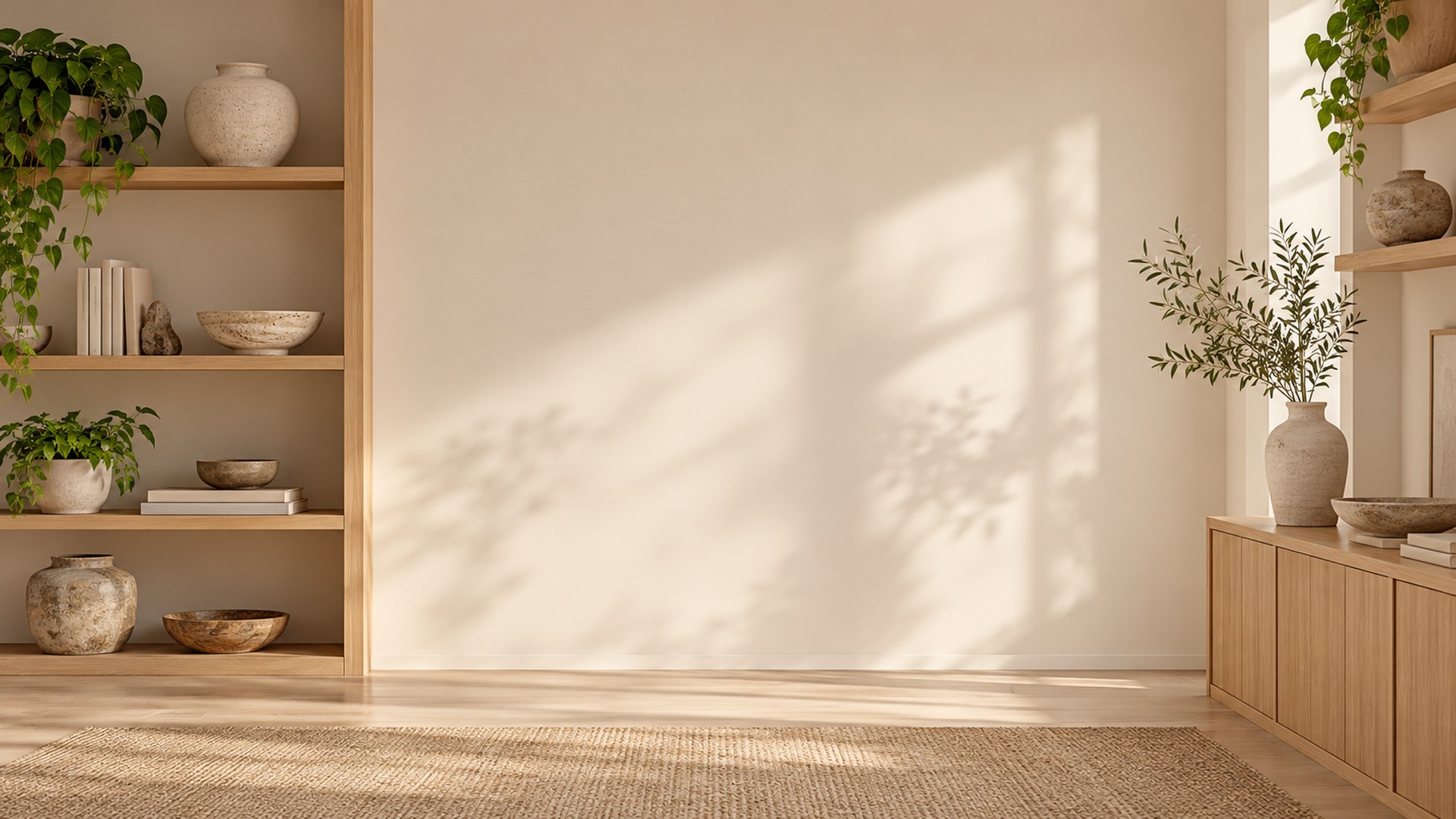
City views and professional offices
A little more architecture for client calls, interviews and portfolio reviews.
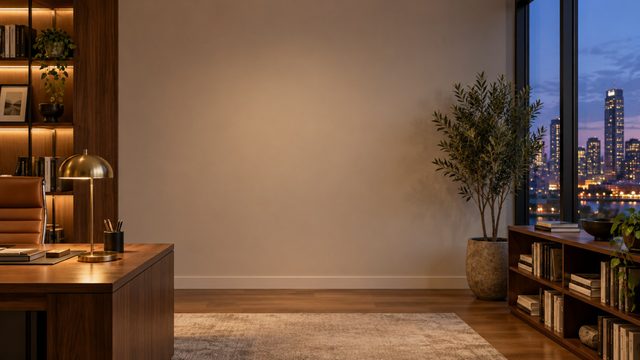
Executive City Office
Download HD JPG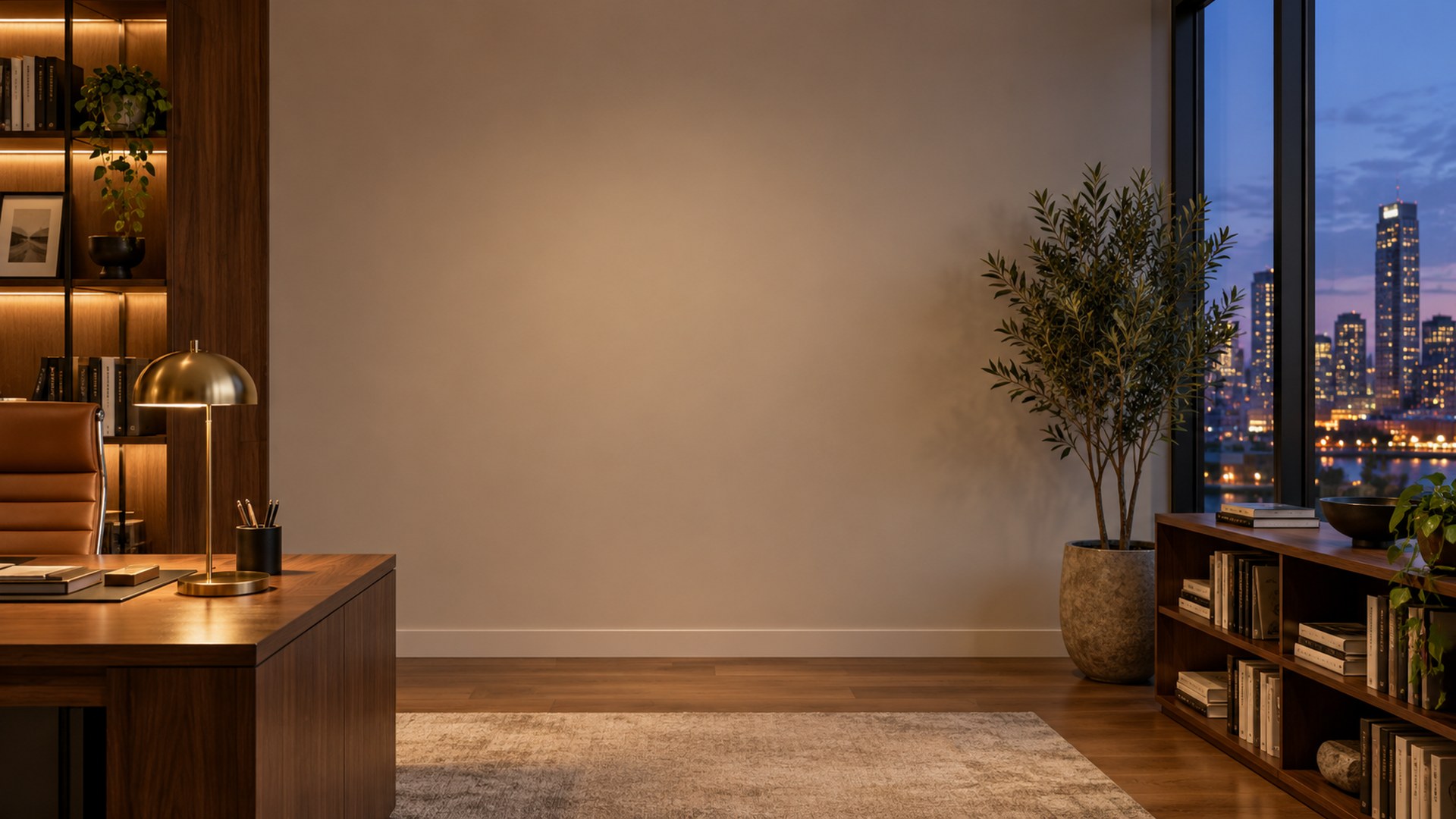
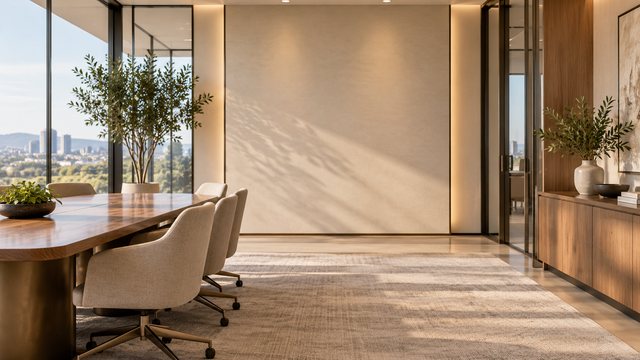
Executive Conference Room
Download HD JPG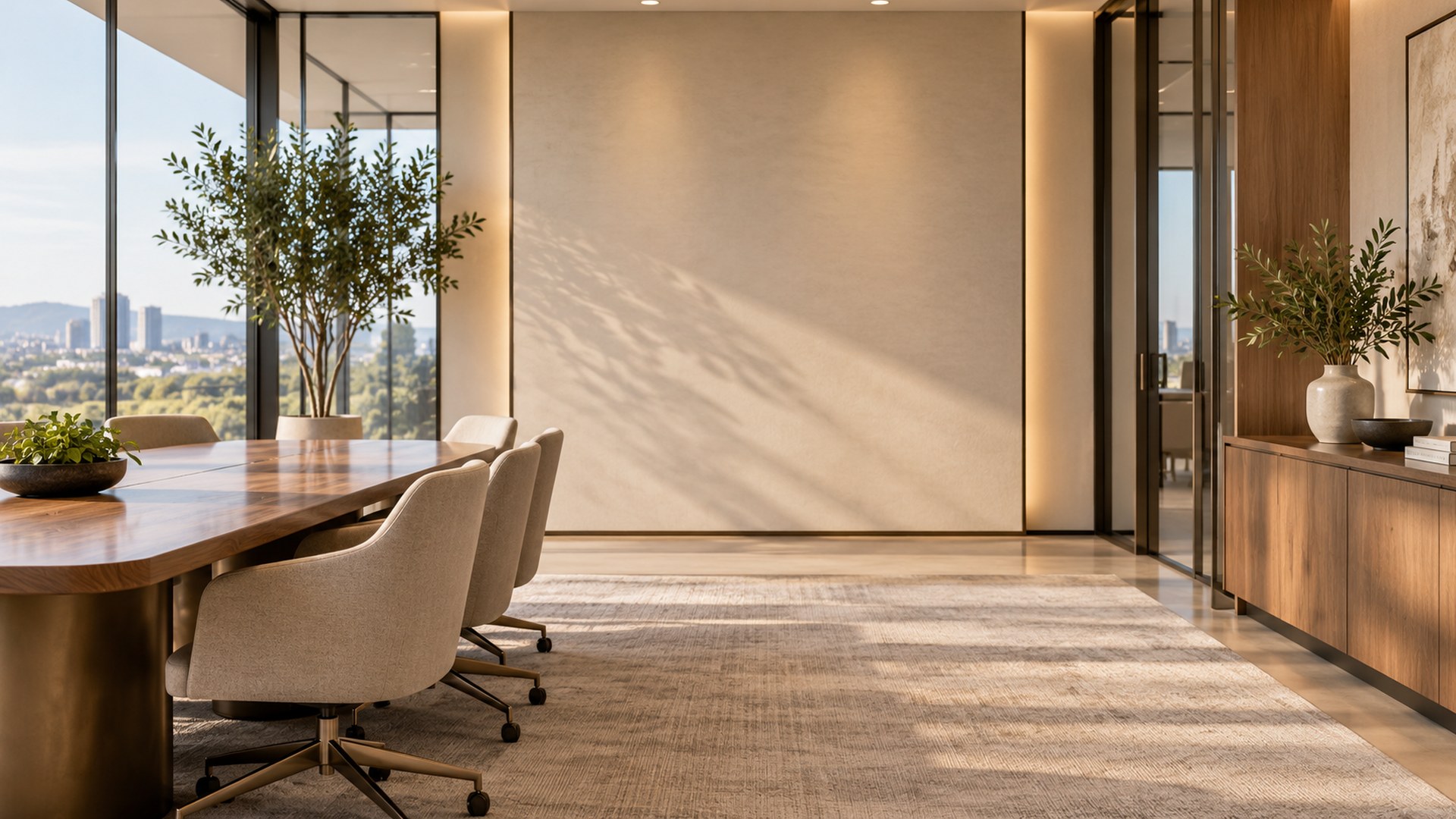
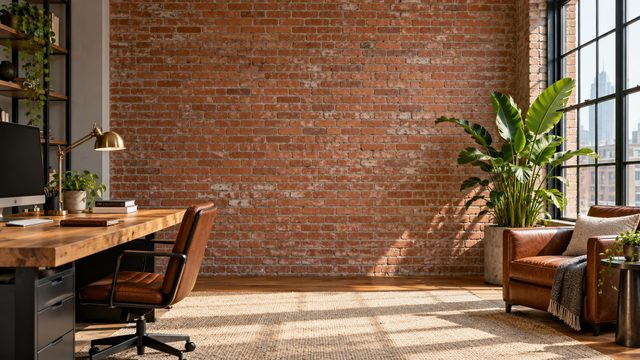
Loft Office with Brick Wall
Download HD JPG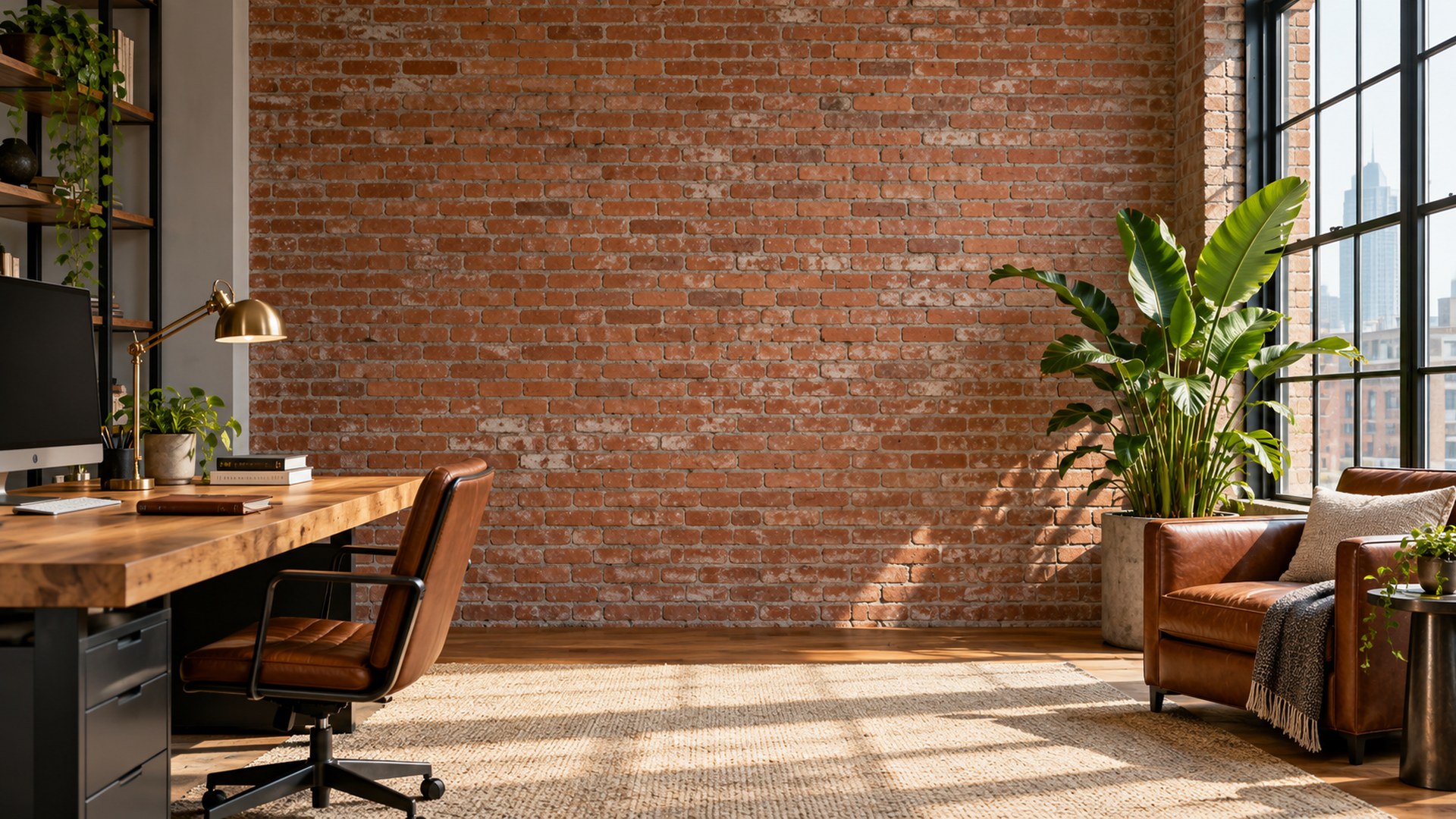
Which home office background fits your call?
Pick by the room you want to signal, not by the file name.
| Call type | Best backgrounds | Why it works |
|---|---|---|
| Client call or interview | Professional Library Office, Quiet Library Desk, Executive Conference Room | Bookshelves and boardroom architecture read as prepared without pulling focus from your face. |
| Team standup or one-to-one | Sunlit Plant Office, Scandinavian Workspace, Cozy Reading Corner | Warm and human; less formal than a boardroom and more credible than a plain gradient. |
| Creative review | Minimal Creative Studio, Warm Studio Shelf, Minimal Studio Morning | Neutral texture and a little personality, with the centre kept clean. |
| Low light or evening call | Executive City Office, Loft Office with Brick Wall | Dusk windows and warm wood tones blend better with a warm webcam image. |
What makes a good home office background
Three checks before you download.
1 · KEEP THE CENTRE CLEAR
Your face needs quiet space
Put shelves, plants and lamps at the edges. A busy bookshelf directly behind your head competes with your face once the meeting tile shrinks.
2 · MATCH THE LIGHT
Warm room, warm face
If your webcam runs cool or blue, choose the white, Scandi or soft-blue rooms. If it runs warm, the bookshelf, loft and evening rooms blend more naturally.
3 · CHECK THE CROP
16:9 is already set
Every JPG is 1920×1080. Sit about an arm's length from the camera and keep your head in the middle third so Zoom or Teams does not crop the room awkwardly.
File specs before you upload
Every download is ready for Zoom and Teams.
Resolution
1920×1080, a 16:9 frame. Zoom asks for at least 1280×720, so these files stay sharp on full-screen calls.
Format and weight
Plain JPG, typically a few hundred kilobytes each. Uploads finish quickly and nothing is re-compressed before the call.
Teams takes the same file
Microsoft Teams accepts the same JPG under Video effects → Backgrounds → Add new. No second download is needed.
No green screen required
Zoom and Teams can apply a virtual background without a green screen on most modern computers and phones. Even front lighting improves the edge.
How to add a home office background in Zoom
Desktop first; mobile uses the same file.
STEP 1
Download the JPG
Use the download button under any room and save the original file, not the thumbnail.
STEP 2
Open Background & effects
In Zoom, open Settings → Background & effects. On mobile, open the meeting menu → Background & effects.
STEP 3
Add the image
Click the plus icon, choose Add image and select the saved JPG. Leave “I have a green screen” off unless you actually use one.
Need a different crop? Use the Zoom background size fixer, the background maker or the compressor if Zoom rejects a file for size.
More background collections
Questions
Are these home office backgrounds free?
Yes. All 15 JPGs are free to download at 1920×1080, with no signup, trial or watermark. Use them in Zoom, Microsoft Teams and Google Meet.
What size are the files?
Every download is a 1920×1080 JPG in a 16:9 frame, the same shape Zoom and Teams expect. The originals are already full HD, so there is nothing to resize.
Can I use the same file in Microsoft Teams?
Yes. Teams accepts the same JPG under Video effects → Backgrounds → Add new. You do not need a separate Teams download.
Do I need a green screen?
No. Zoom and Teams can apply a virtual background without a green screen on most modern computers and phones. Even front lighting gives a cleaner edge.
Which home office background looks most professional?
Start with Professional Library Office, Quiet Library Desk, Executive Conference Room. They keep the centre calm and put shelves, windows and architecture at the edges.
Will the background look blurry?
Use the original JPG, not the thumbnail. A 720p webcam will always look softer than a 1080p camera, but the background file itself stays sharp in full-screen calls.